

Prerequisites
Before setting up, you’ll need:- A Google Cloud account — if your organization doesn’t have one yet, create a Google Cloud account first. You’ll need this to access the Google Cloud Console and create a service account. If your organization already uses GCP with Adapt, see the GCP integration guide for details.
- Google Workspace admin access to configure domain-wide delegation
- Google Cloud Console access to create a service account
- A user email that the service account will impersonate
Setup
Step 1: Create a Google Cloud Project
1
Open Google Cloud Console
Go to console.cloud.google.com and sign in with your Google Workspace admin account.
2
Create a new project
Click the project dropdown at the top, then New Project. Name it something like “Adapt Integration”.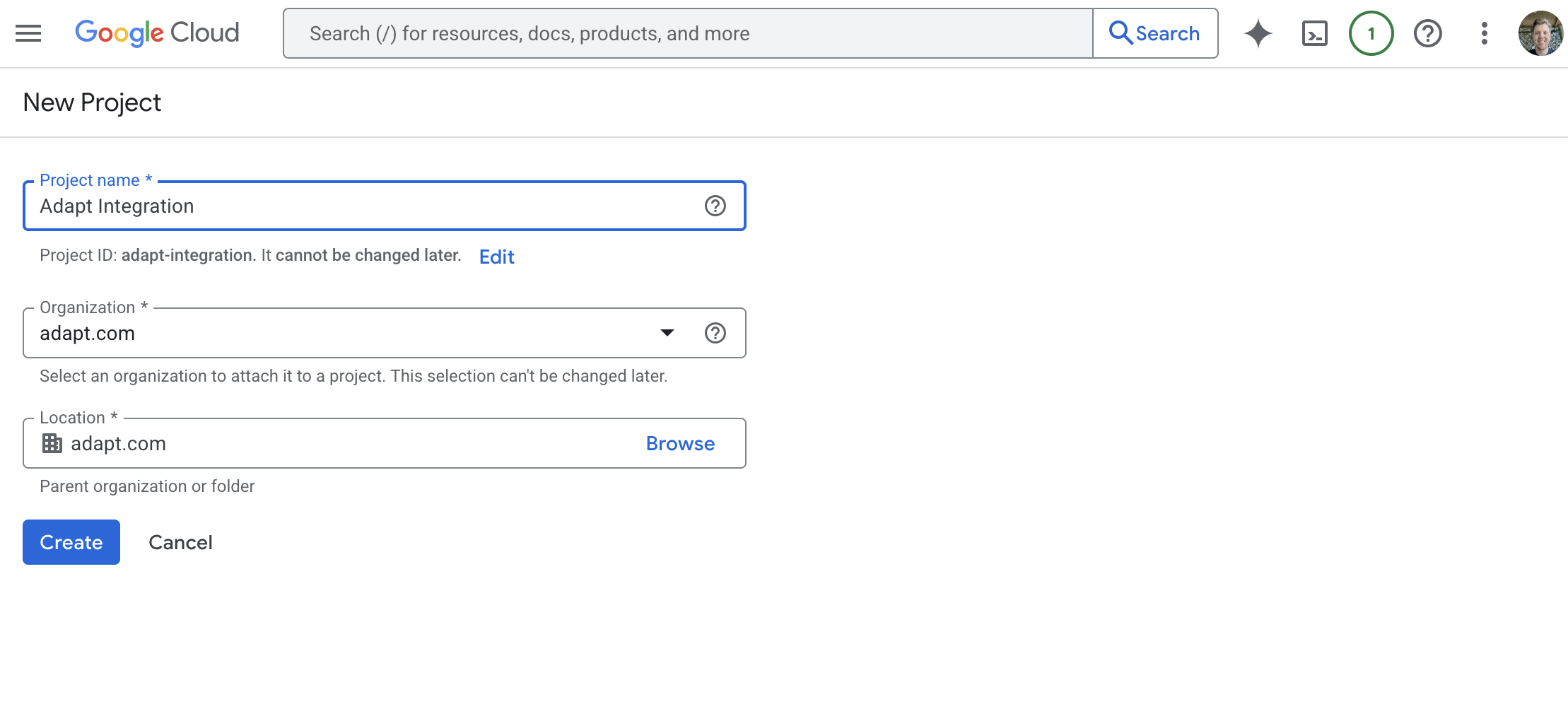
3
Select the project
Make sure your new project is selected in the project dropdown before continuing.
Step 2: Enable Required APIs
1
Navigate to APIs & Services
In the left sidebar, go to APIs & Services > Library.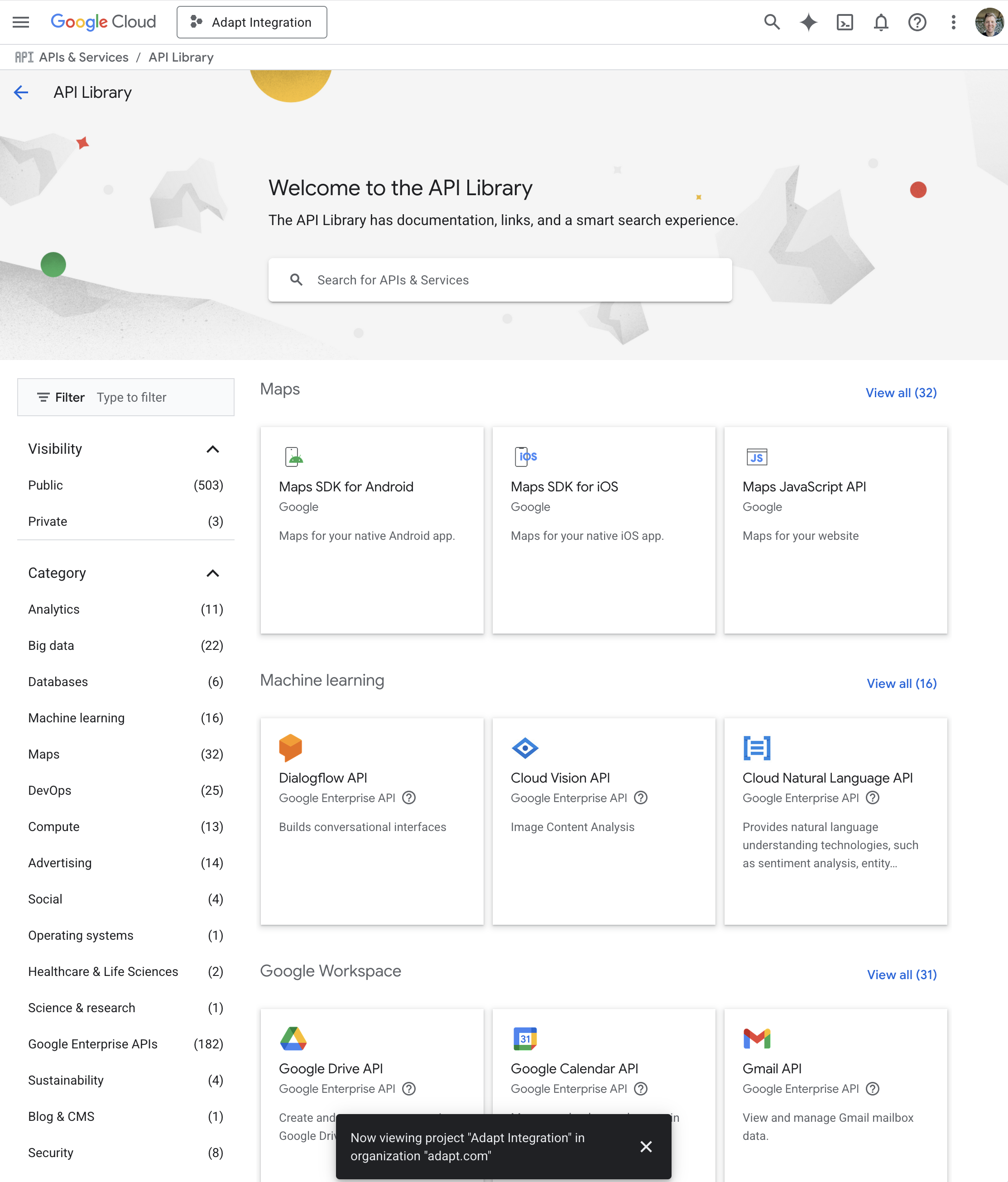
2
Enable the following APIs
Search for and enable each of these APIs: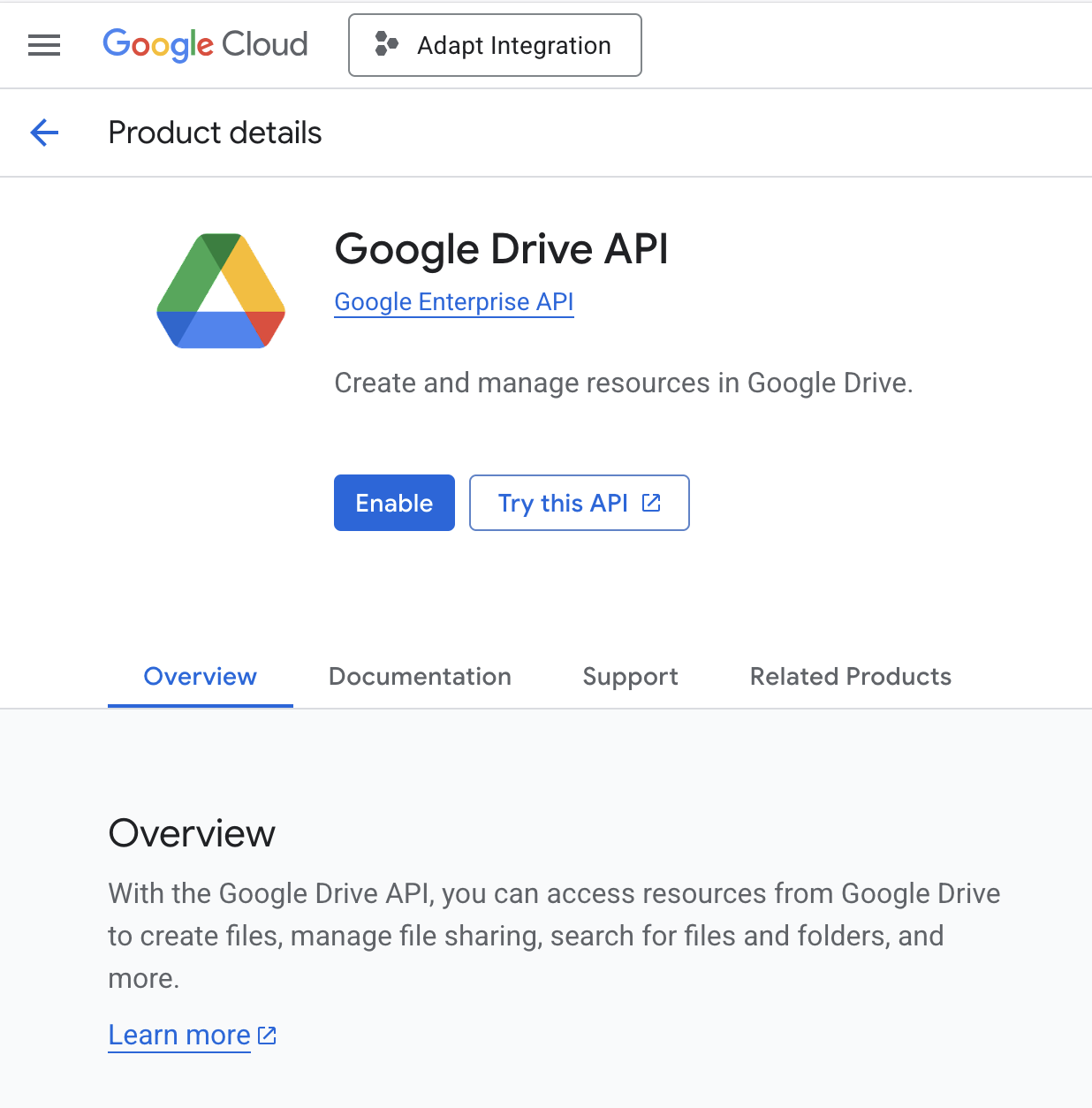
Step 3: Create a Service Account
1
Go to Service Accounts
Navigate to IAM & Admin > Service Accounts in the left sidebar.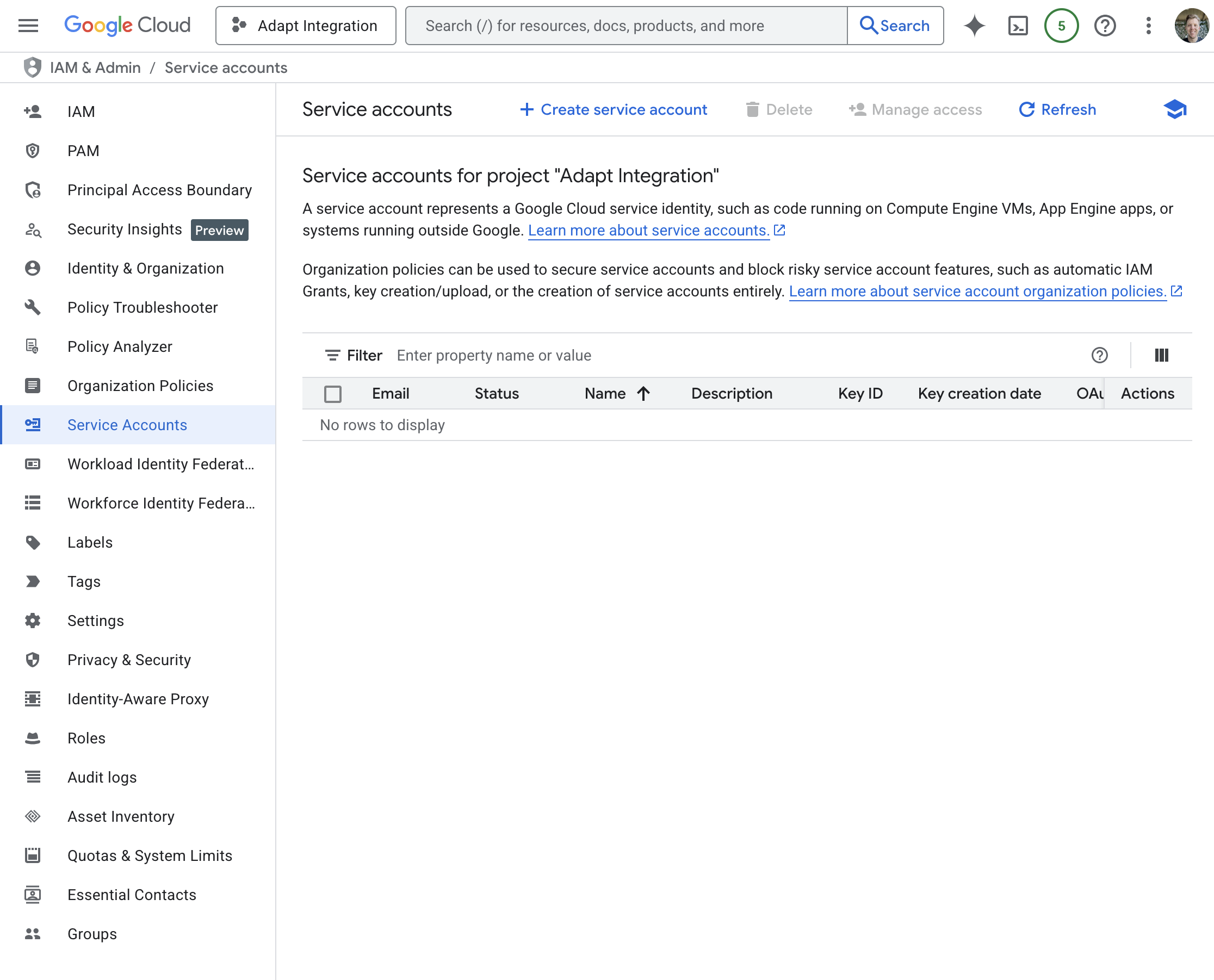
2
Create service account
Click Create Service Account at the top.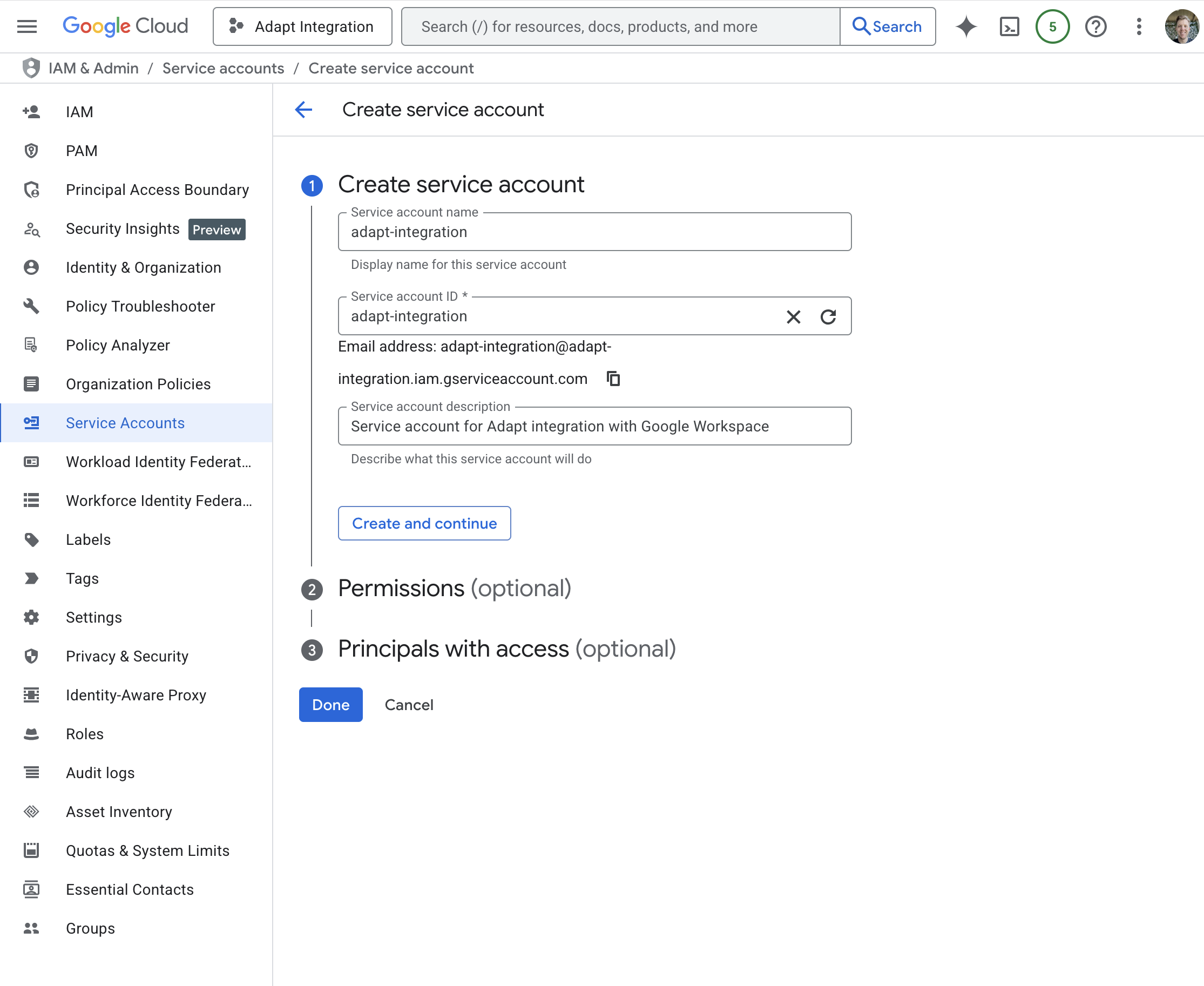
- Name:
adapt-integration - Description: “Service account for Adapt integration with Google Workspace”
3
Skip optional steps
You can skip the “Grant this service account access” and “Grant users access” steps. Click Done.
4
Create a key
Click on your new service account, go to the Keys tab, and click Add Key > Create new key.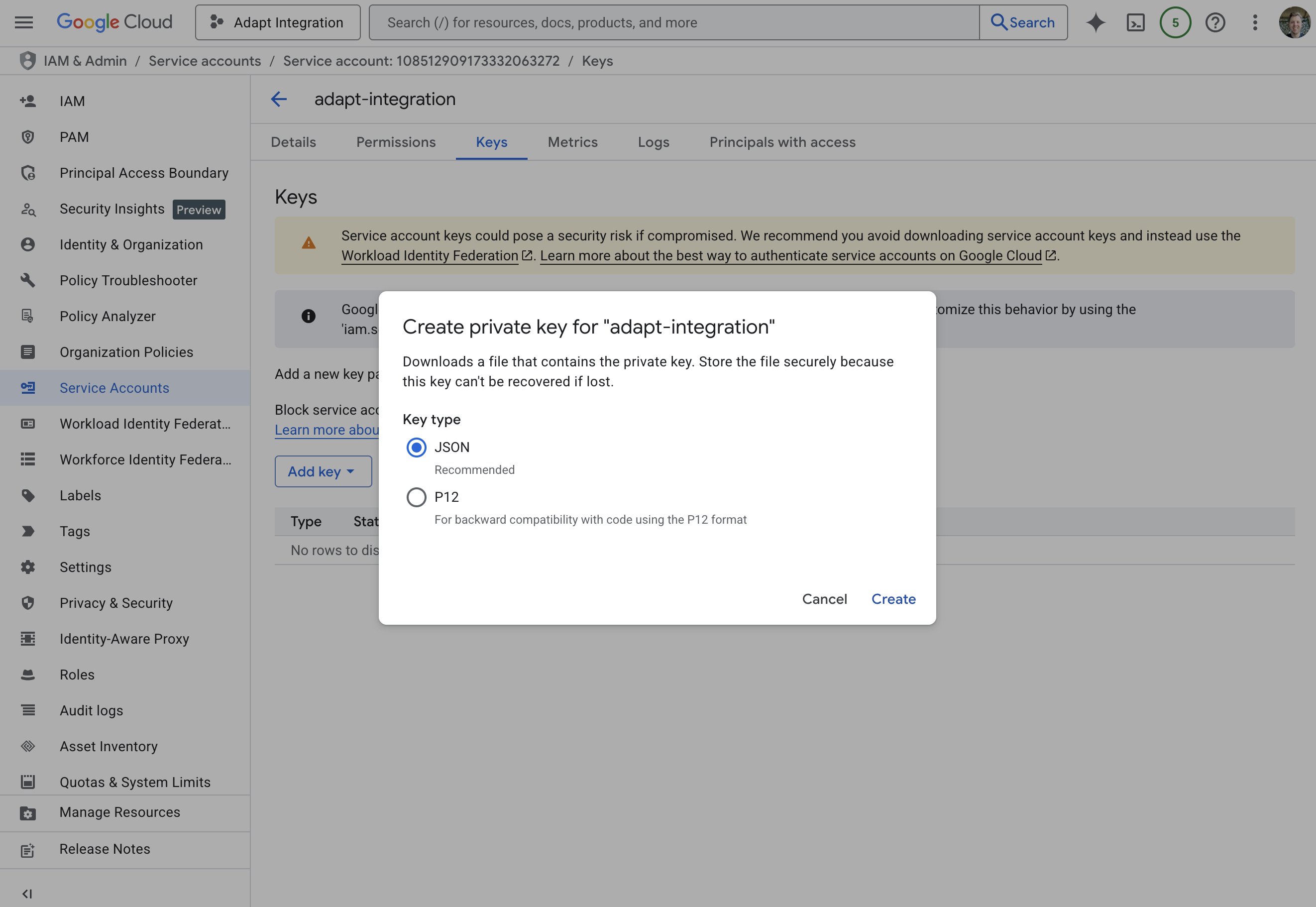
- Select JSON format
- Click Create
Step 4: Configure Domain-Wide Delegation
1
Enable delegation on the service account
In the service account details, click Advanced Settings, and note the
Client ID of the service account.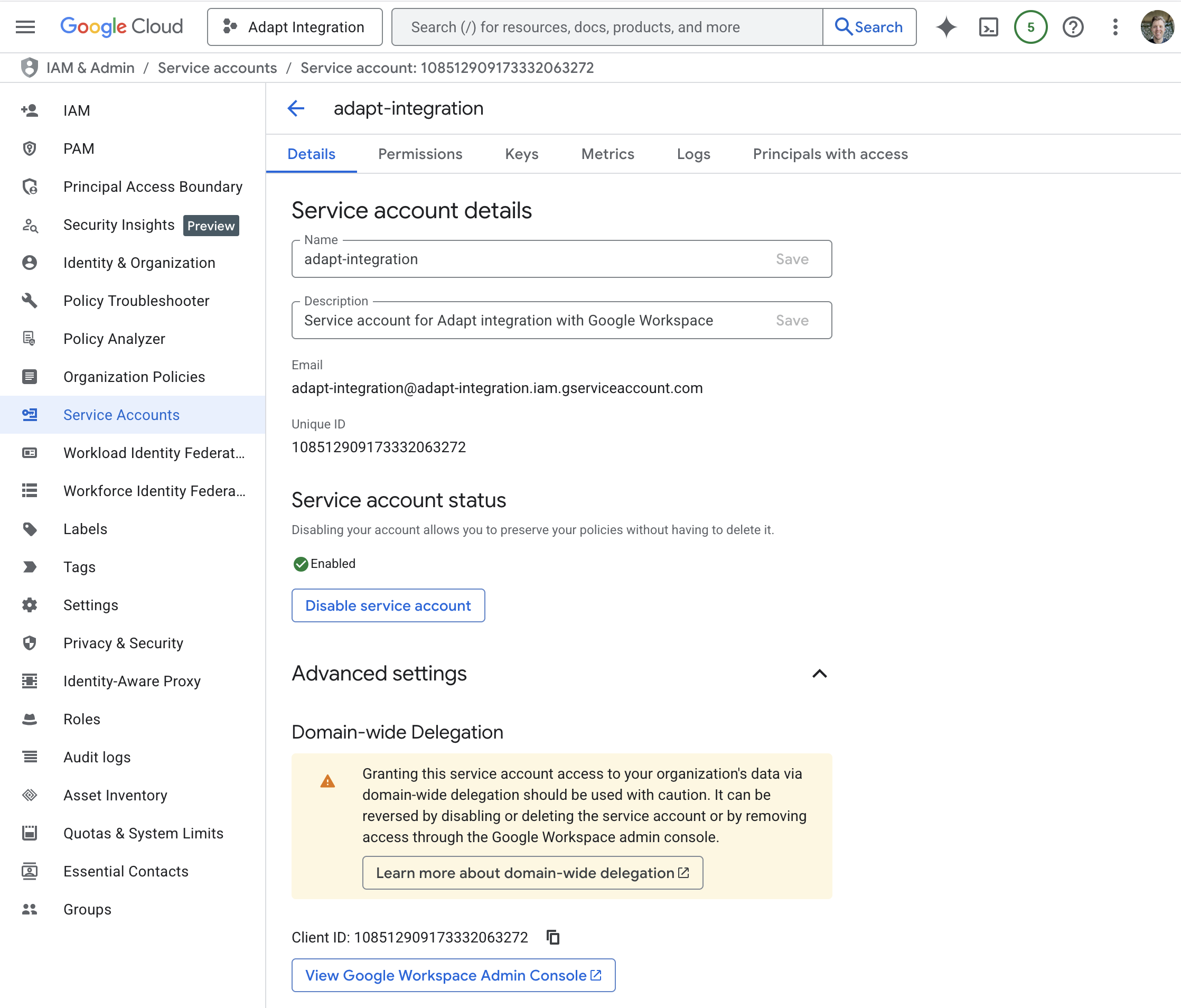
2
Open Google Workspace Admin Console
Go to admin.google.com and navigate to Security > Access and data control > API controls.
3
Manage Domain-wide Delegation
Click Manage Domain Wide Delegation, then Add new.
4
Add the Client ID and scopes
Enter the Client ID for the service account, then add the OAuth scopes matching the access level you’ll choose in Adapt (comma-separated):For read & write access:For read-only access: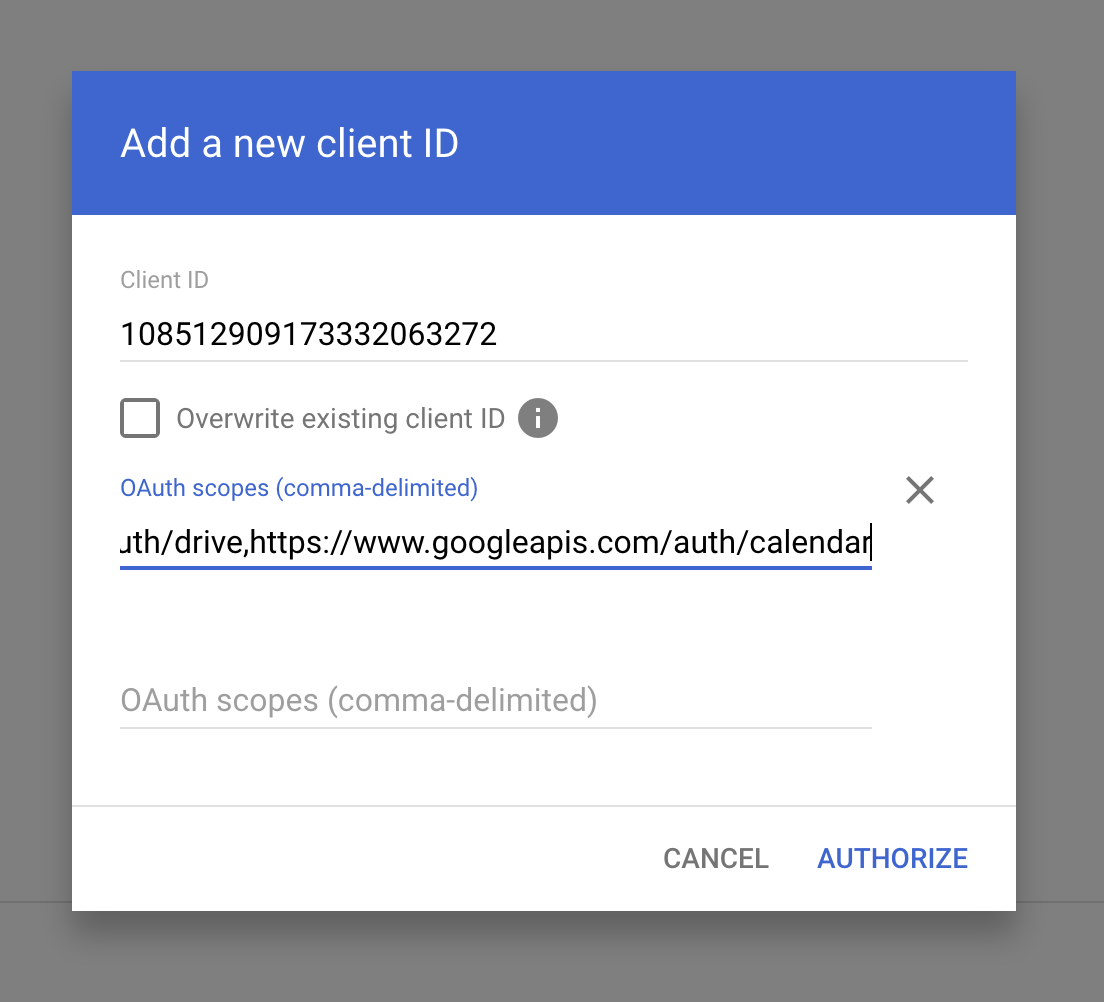
5
Authorize
Click Authorize to complete domain-wide delegation setup.
Step 5: Connect to Adapt
1
Go to Integrations
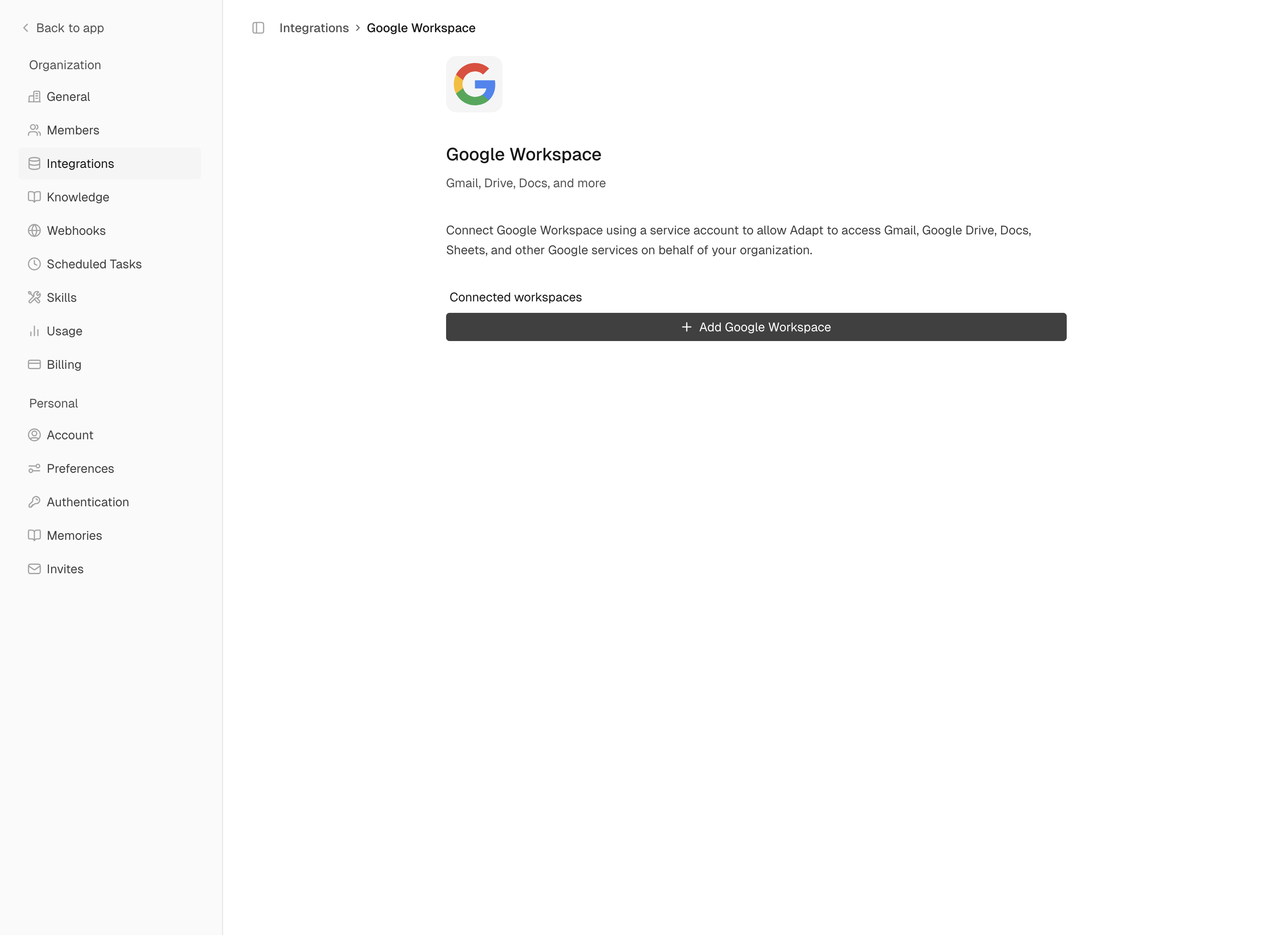
In Adapt, navigate to Settings > Integrations > Google Workspace.
2
Add Google Workspace
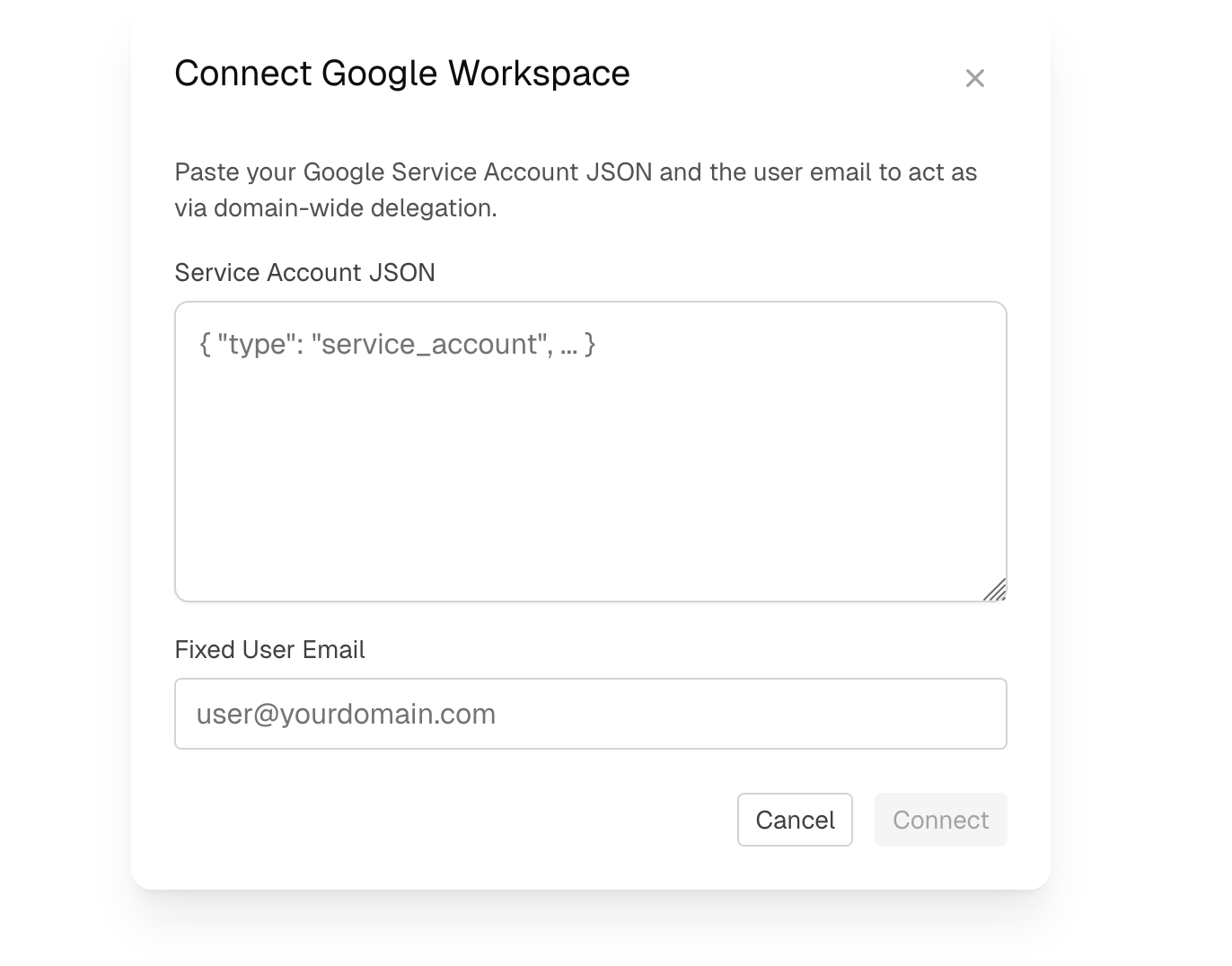
Click Add Google Workspace to open the connection dialog.
3
Enter credentials
- Service Account JSON: Paste the entire contents of the JSON key file for your service account.
- Fixed User Email: Enter the email of a user in your domain that Adapt should impersonate (e.g.,
adapt@yourdomain.com) - Access Level: Choose Read & Write or Read-only — this must match the scopes you configured in Step 4.
4
Connect
Click Connect to complete the setup.
Permissions
Depending on the access level you chose during setup, Adapt will have:All access is performed by impersonating the Fixed User Email you specified during setup. Adapt will have the same access as that user within the authorized scopes.
Capabilities
With Google Workspace connected, Adapt can help you work with your organization’s documents and communications.Examples
Read and analyze documents:Troubleshooting
”Unauthorized” or “Access denied” errors
- Check that the OAuth scopes in Admin Console match what Adapt needs
- Ensure the Fixed User Email is a valid user in your domain
”API not enabled” errors
- Return to the Google Cloud Console and verify all required APIs are enabled
- Make sure you’re in the correct project
Changes not appearing
- Domain-wide delegation can take a few minutes to propagate
- Try disconnecting and reconnecting the integration
Security Considerations
- Anyone in your organization can access what Adapt can access. The organization connection impersonates a single Fixed User Email, so any document that user can open is reachable by everyone in your organization through Adapt. If content should stay scoped to a single person, use a personal connection instead.
- The service account JSON contains sensitive credentials. Never share it publicly.
- Use read-only scopes if Adapt doesn’t need to create or modify content.
- Consider creating a dedicated admin user for the Fixed User Email to audit Adapt’s activity.
- You can revoke access at any time by deleting the domain-wide delegation entry in Admin Console.