

Installation
Add to Your Workspace
1
Start installation
Go to Settings > Integrations > Slack in the Adapt web app, or click the Add to Slack button
2
Authorize
Review the permissions and click Allow to add Adapt to your workspace
3
Configure
Select which channels Adapt can access (you can change this later)
Permissions Required
Adapt requests these Slack permissions:Using Adapt in Slack
Your Adapt account
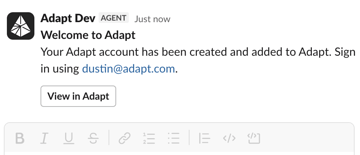
If you do not have an Adapt account, your first direct message to Adapt or@Adapt mention creates one using the email address from your Slack profile. Adapt adds the account to your organization’s workspace and sends you a direct message with a link to sign in.
Direct Messages
Message @Adapt directly for private conversations:Channel Mentions
Mention @Adapt in any channel to get insights visible to the team:Thread Replies
Keep complex discussions organized in threads:Features
File Analysis
Adapt can also generate images from a prompt or edit images you share in a thread. Just ask — the result is posted back into the conversation. Drop files into your conversation for instant analysis: Supported formats:- CSV and Excel spreadsheets
- PDF documents
- JSON data files
- Images and screenshots
Scheduled Reports
Set up automated reports delivered to Slack channels:Quick Actions
Adapt can take actions directly from Slack:Response formatting
Adapt writes Slack replies in standard Markdown, and Slack renders them natively — headings, bold, links, and code all come through as formatting rather than raw symbols. When an answer reports three or more records that share the same fields (metric grids, before-and-after values, per-item rows, comparisons), Adapt formats it as a real table instead of prose or bullets. Slack allows one table per message, so Adapt tables the most important set and summarizes the rest as bullets. This applies everywhere Adapt writes in Slack:@Adapt mentions, direct messages, and automations posting to a channel.
Huddle transcripts
When a huddle ends in a channel Adapt is in, Adapt posts the full transcript into the huddle thread ashuddle-transcript.md and keeps a searchable copy.
PATCH /api/orgs/{orgId}/integrations/{id}/huddle-transcripts-enabled.
Limits
- Transcripts depend on Slack generating huddle notes. If your Slack plan doesn’t produce them, there’s nothing for Adapt to pick up.
- Capture is forward-looking. Huddles that ended before the feature was available aren’t searchable.
Proactive responses
By default, every channel and thread stays in@-mention only mode — Adapt only responds when you tag it, exactly the behavior that already existed. To let Adapt jump in on its own, opt a channel or thread into a different trigger mode by tagging Adapt and describing when it should respond:
Trigger modes can be set at the channel level or overridden per thread. Thread-level settings take precedence, so you can opt a single thread out of a noisy channel — or the other way around.
To change or revert a mode, just tag
@Adapt again and tell it what you want.
Suggested rules when Adapt joins a channel
When Adapt is invited to a channel, it reads the channel name, topic, purpose, recent messages, and your connected integrations, then posts up to three suggested trigger rules — each with an Enable button.
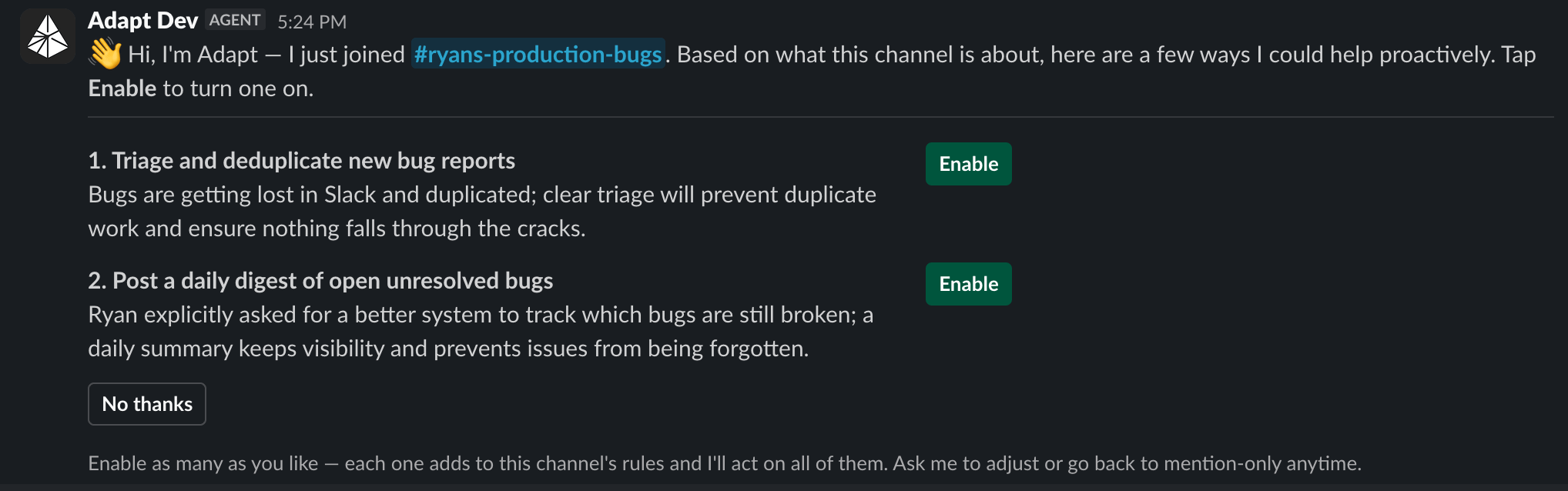
- Anyone in the channel can tap Enable. Enabling a second suggestion adds to the channel’s rules instead of replacing the first, and Adapt acts on all of them.
- No thanks leaves the channel on
@-mention only. - Suggestions stay actionable for seven days.
- Adapt stays silent when it can’t see a clear way to help, when the channel already has a trigger mode set, or in externally shared Slack Connect channels.
- “Respond to any top-level message announcing that something was shipped, released, or rolled out to production.”
- “Respond when a customer asks a how-to question about pricing or onboarding.”
- “Respond to top-level bug reports, including screenshots, screen recordings, and short messages like ‘broken’ or ‘doesn’t work’.”
“Only reply as a top-level message when you’re tagged. In a thread, reply to messages — but only ones where it’s clear humans aren’t talking to other humans.”Smart mode is most powerful when paired with skills and automations: the policy decides when to wake Adapt up, and the skill decides what to do once it’s awake.
Your own branded app
Run Adapt in Slack under your organization’s name and icon, so your team tags@yourcompany instead of @Adapt. Same agent, same integrations, same knowledge — your identity. Settings > Integrations > Slack offers two ways to appear in Slack:
Before you start
- In Slack: permission to create an app in your workspace. Some workspaces restrict app creation to owners — check before you begin.
- In Adapt: admin access to your organization’s settings.
- On hand: the name your team will tag (up to 35 characters), a one-line description (up to 140 characters), and a square app icon.
api.slack.com. Keep both open.
Set up a branded app
1
Open the Slack integration
In Adapt, go to Settings > Integrations > Slack and click Set up branded app. The wizard has three stages: Customize, Create app, Connect.
2
Name and describe your app
On the Customize step, fill in:
- Display name — what teammates see and tag in Slack. Defaults to your organization name.
- Description — one line shown in Slack alongside your app. Defaults to “Your AI teammate for work, powered by Adapt.”
3
Copy the manifest
Click Copy manifest. Leave the JSON as-is — its URLs point back to your organization, so an edited manifest won’t connect.
4
Create the app in Slack
Click Open Slack, then:
- Choose From a manifest.
- Pick the workspace the app will live in and click Next.
- Paste the manifest JSON, click Next, then Create.
5
Upload your icon
In your new app, go to Basic Information > Display Information, upload your app icon, and pick a background color. This is the avatar your team sees on every reply.
6
Copy the four credentials into Adapt
Still in Slack, open Basic Information > App Credentials and copy each value into the matching field in Adapt:
Copy one value at a time, then click Save and continue. Adapt encrypts both secrets on save and never displays them again.
7
Authorize the app
Click Authorize branded app, then Allow in Slack. Adapt shows Branded app connected when the install lands.
8
Invite it to channels
Run
/invite @yourcompany in each channel you want it in, then set trigger modes the same way you would for Adapt.What the manifest configures
The generated manifest is a complete app definition, so there’s nothing to configure by hand in Slack:- Bot and user scopes matching the Adapt Slack app
- Event subscriptions and an interactivity URL pointing at Adapt, scoped to your organization
- The OAuth redirect URL Adapt uses to complete installation
- App Home, the messages tab, and an agent view with suggested prompts
- Token rotation on; Socket Mode and org-wide deploy off
Running alongside the Adapt app
Both apps can be connected to the same workspace, which makes migration safe. Conversations that start with your branded bot stay with it, and Adapt handles messages started elsewhere. If a thread ends up owned by both apps, neither responds. To hand channel rules and scheduled tasks over to your branded app, open the connection’s menu and choose Move configuration. It’s a move, not a copy — two apps holding the same rule would both answer the same message. The preview shows which channel rules move, which the branded app already covers, and how many scheduled tasks re-point.Rename or update branding later
Renaming the app in Adapt does not rename the bot in Slack. Change the name atapi.slack.com/apps under App Home and Basic Information > Display Information. When the two names drift, Adapt flags it with a Rename in Slack shortcut.
Rotate or remove credentials
Use the ⋯ menu on the Slack integration header:- Edit — replace the stored credentials after rotating a secret in Slack.
- Remove — delete the saved credentials. Disconnect every branded installation first.
Troubleshooting
Slack rejects the manifest
Slack rejects the manifest
Paste the entire JSON, including the outer braces, into the From a manifest flow. If you edited it or changed your app name in Adapt afterward, go back to step 1 and click Prepare manifest again.
You can't create an app in Slack
You can't create an app in Slack
Your workspace restricts app creation. Ask a Slack workspace owner to create the app from the manifest and send you the four credentials.
The branded bot doesn't respond
The branded bot doesn't respond
Confirm the install finished (Branded app connected in Adapt), that the bot is invited to the channel, and that the App ID in Adapt matches the app you created. Credentials copied from a different app fail silently.
The bot still shows the old name
The bot still shows the old name
Slack owns the bot name after creation. Rename it at
api.slack.com/apps under App Home and Display Information.Both bots reply, or neither does
Both bots reply, or neither does
Each app evaluates its own trigger rules. Use Move configuration to give the branded app the channel rules and scheduled tasks, so only one app owns each channel.
Best Practices
When to Use Slack vs Web App
Tips for Better Responses
Be specific about data sources
Be specific about data sources
“Check HubSpot for…” or “Look at our Snowflake data for…”
Include time ranges
Include time ranges
“Last week”, “Q4 2024”, “Past 30 days”
Request specific formats
Request specific formats
“Show me a table”, “Summarize in bullet points”, “Create a chart”
Use threads for follow-ups
Use threads for follow-ups
Keep related questions in the same thread to maintain context
Channel Configuration
Adding Adapt to Channels
Invite Adapt to channels where you want it available:- Go to the channel
- Type
/invite @Adapt - Adapt can now respond to mentions in that channel
Restricting Access
Control which channels Adapt can access:- Go to Settings > Integrations > Slack in the web app
- Select Manage Channels
- Choose allowed or blocked channels
Troubleshooting
Adapt isn't responding
Adapt isn't responding
- Make sure Adapt is invited to the channel
- Check that you’re mentioning @Adapt correctly
- Verify the Slack integration is connected in Settings
Adapt can't access my data
Adapt can't access my data
- Ensure the relevant integration is set up (e.g., Snowflake, HubSpot)
- Check your organization’s permissions
Messages are slow
Messages are slow
- Complex queries take longer to process
- Large file uploads require more analysis time
Next Steps
Set Up Integrations
Connect data sources for richer Slack responses
Automations
Automate reports to Slack channels