


Building an automation used to mean filling out a form: pick a type, write a prompt, set a cron expression, choose a delivery target. Now you describe what you want and Adapt sets it up. The create and edit modals are gone.
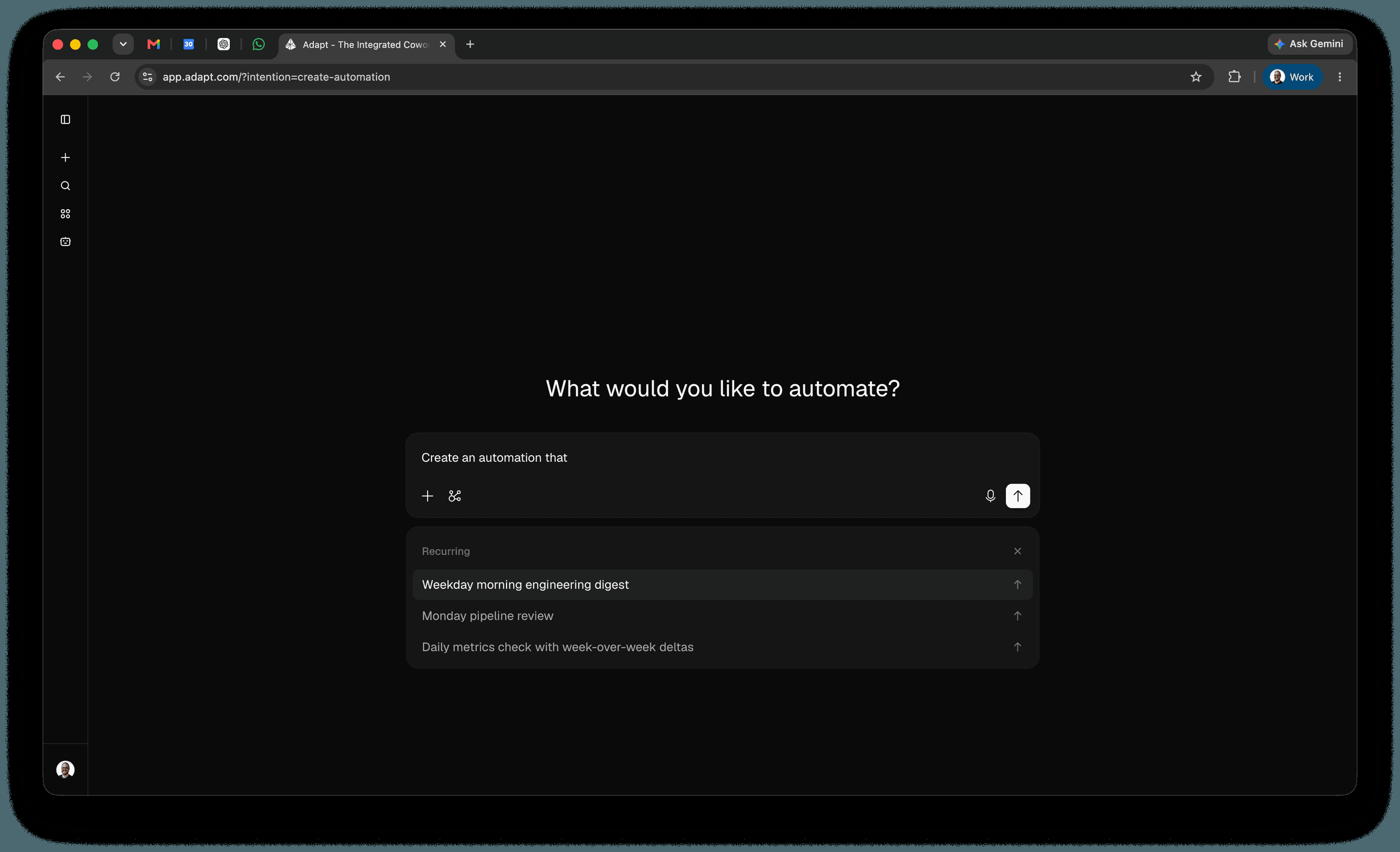
Creating an automation
Click New automation on the Automations page and Adapt opens a chat that asks What would you like to automate?, with the composer pre-filled with Create an automation that. Finish the sentence:
Create an automation that posts a summary of yesterday's merged PRs
to #engineering every weekday at 8am.
Adapt works out the schedule, the prompt, and where the results should land, then confirms the automation back to you.
Not sure what to ask for? Three groups of prompt examples sit under the composer — Recurring, One-time, and Event-based. Open a group, pick an example, and it runs immediately as a starting point you can refine in the same chat.
Editing an automation
Open any automation or webhook and choose Edit. Adapt starts a chat pre-filled with Edit automation "{name}" to — say what should change and it applies the update.
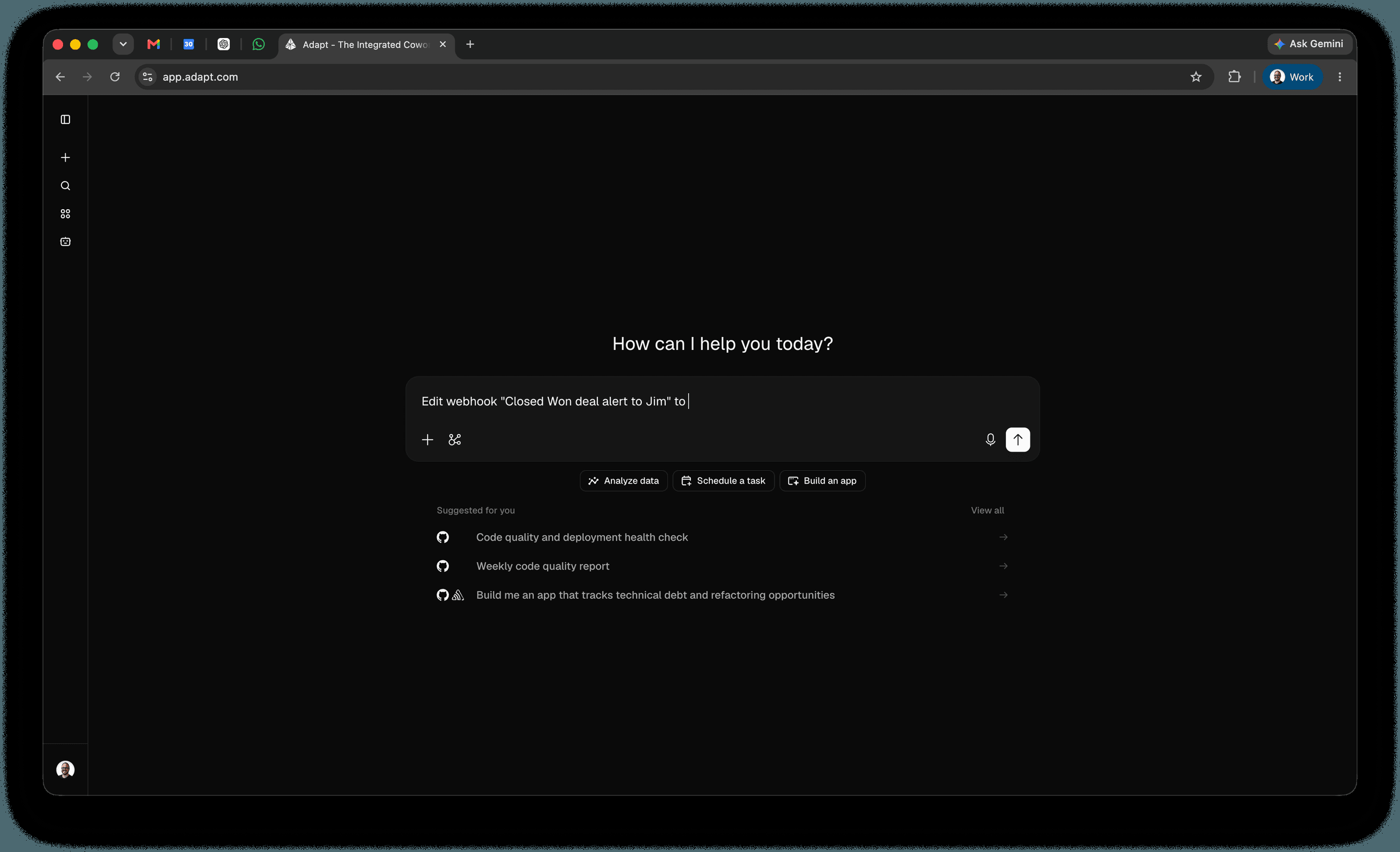
Edit automation "Monday pipeline review" to run at 8am
and post to #sales-leadership instead of DMing me.
Because editing happens in a chat, you can change several things at once, ask what the automation currently does, and refine it until it's right — without touching a form.
See Automations for the full reference.