


Iterating on an app used to be one-way. If a change made things worse, the build it replaced was gone. Adapt now saves a version every time an app is edited, and the app toolbar lets you put any earlier build back.
How it works
Ask Adapt to change an app and it saves the new build as the current version, keeping the one it replaced in history. Each version captures the whole build: the bundle, build command, entrypoint, port, preview image, and which secrets the app uses. Secret values are never stored in history — a restored build resolves them from your current keys at deploy time.
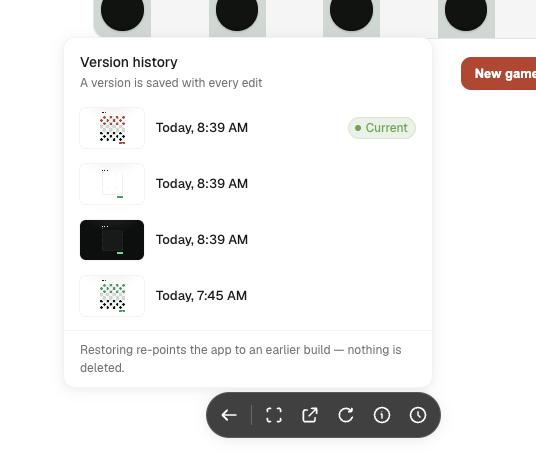
Open any app and click the clock icon in the toolbar to see the list. Versions are newest first, each with a preview thumbnail and the time it was saved. The button appears once an app has more than one version.
Restoring an earlier build
Hover the version you want and click Restore. Adapt re-points the app to that build and redeploys so the restored version is what people see.
Restoring is not destructive: the build you replaced moves into history like any other version, so you can restore forward again if you change your mind. Nothing is deleted.
See Apps for more on building and managing apps.