
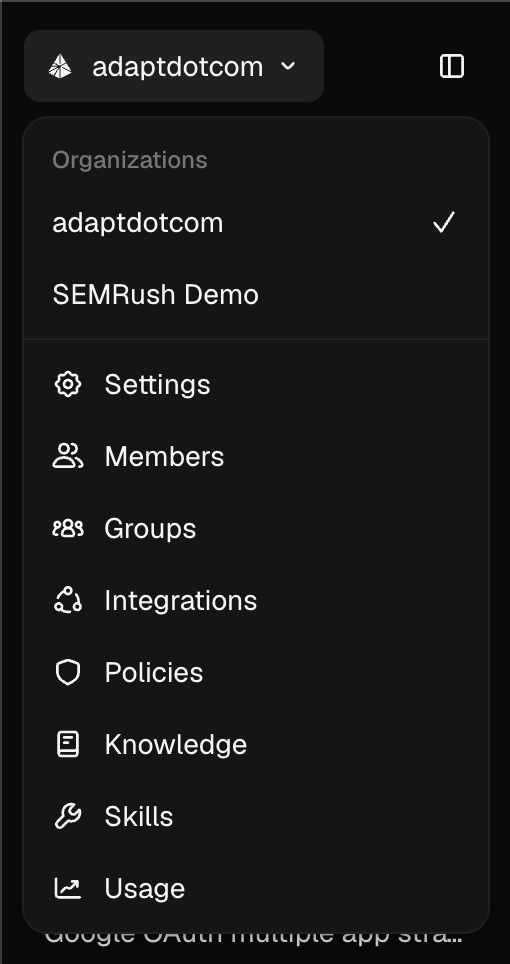
The sidebar now organizes everything behind two clean menus: a workspace menu at the top for your organization, and a user menu at the bottom for your personal settings and support. Instead of hunting through a single crowded list, each menu groups the things that belong together, so getting to the right place takes fewer clicks.
Workspace menu
Click your organization name at the top of the sidebar to switch organizations and jump straight to any org-level page. The current organization is marked with a checkmark, and every organization page is one click away:
- Settings — general organization settings
- Members, Groups, Integrations, Policies
- Knowledge, Skills, Usage
User menu
Click your name and avatar at the bottom of the sidebar for everything personal:
- Account, Preferences, Authentication, and Invites — with a dot on Invites when you have a pending invitation
- Support — a submenu with live system status, a New support case form, links to Documentation and Email support, a way to reach sales, and — when Slack is connected — a Slack Connect request
- Log out
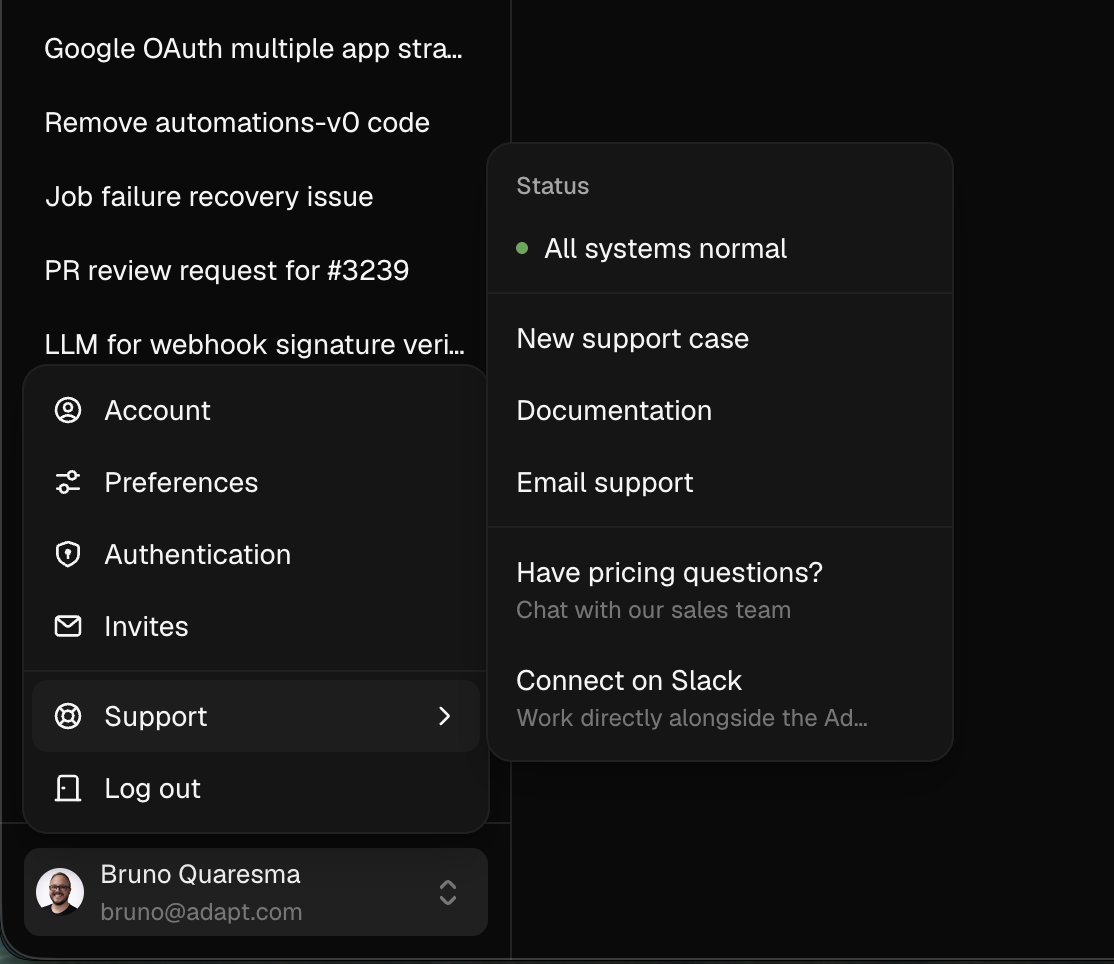
Support now lives in this menu as a submenu, so help is always one hover away from wherever you're working.