> ## Documentation Index
> Fetch the complete documentation index at: https://adapt.com/docs/llms.txt
> Use this file to discover all available pages before exploring further.
# Web App
> Access Adapt's full features through the web interface
The Adapt web app at [app.adapt.com](https://app.adapt.com) provides the
complete Adapt experience with all features and capabilities.
## Getting Started
### Sign In
1. Go to [app.adapt.com](https://app.adapt.com)
2. Sign in with Google OAuth or your email/password
3. Select your organization (or create a new one)
### Interface Overview
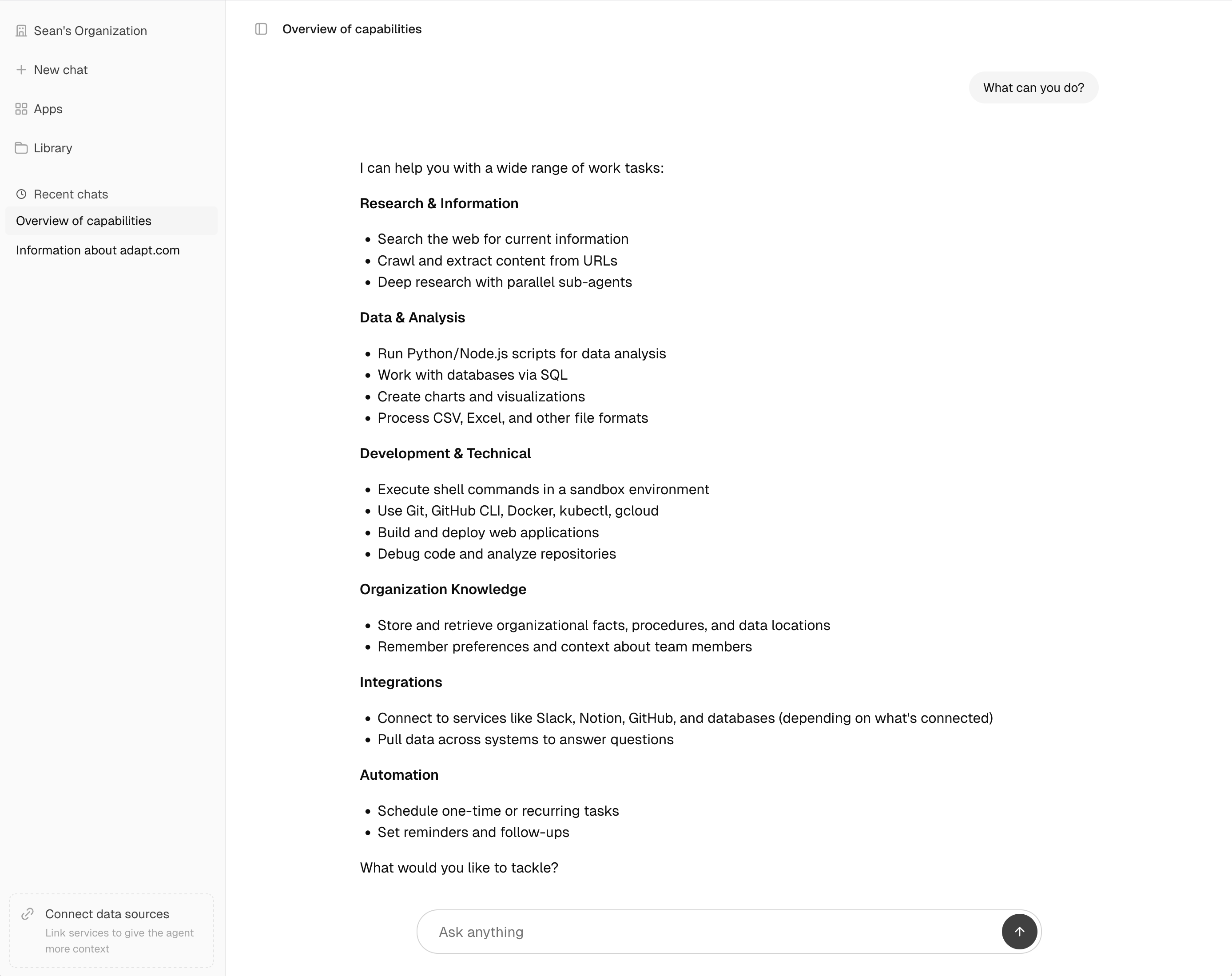
The web app has two main areas:
* **Sidebar**: Navigation, conversation history, and organization settings
* **Chat area**: Your conversation with Adapt
 ## Chat Interface
### Starting a Conversation
Click **New Chat** to start a new conversation.
Type your question naturally:
```
What were our top-performing products last quarter?
```
### Draft Messages
Adapt saves whatever you've typed in the composer and restores it when you return to a conversation. Each chat keeps its own draft, and the new-chat composer keeps its own too, so you can start a message, navigate away, and pick it back up later. Drafts are saved automatically as you type, are cleared once you send the message, and are stored locally in your browser.
### Message Features
| Feature | How to Use |
| ---------------- | ----------------------------------------------------------- |
| **Edit message** | Click the edit icon on any of your messages to revise it |
| **Regenerate** | Click regenerate to get a new response to the same question |
| **Copy** | Copy any response or code block to your clipboard |
### Chat Menu
Open the chat menu from the three dots next to a chat in the sidebar or the same menu in the title bar. The menu is identical in both places and includes:
* **Pin** to keep a chat at the top of the sidebar
* **Rename** the chat
* **Copy all messages** as Markdown to your clipboard
* **Download as Markdown** to save the conversation as a `.md` file
* **Delete** the chat
Sharing has its own button in the title bar of any chat you own.
### Exporting a Chat
Both **Copy all messages** and **Download as Markdown** produce the same content — the full conversation as Markdown with:
* Every message labeled with author and timestamp
* Attachments listed inline with filenames
* Tool calls and tool results preserved as fenced code blocks
The export is the conversation verbatim, not a summary, so it pastes cleanly into docs, tickets, or anywhere else you keep notes.
### File Attachments
Attach files to your messages for analysis:
* **CSV/Parquet/JSON/Excel**: Upload files for data analysis
* **PDF**: Share documents for summarization or extraction
* **Images**: Include screenshots or charts for discussion, or ask Adapt to edit, restyle, composite, or transform them
Drag and drop files into the chat to attach it to your message.
## Chat Interface
### Starting a Conversation
Click **New Chat** to start a new conversation.
Type your question naturally:
```
What were our top-performing products last quarter?
```
### Draft Messages
Adapt saves whatever you've typed in the composer and restores it when you return to a conversation. Each chat keeps its own draft, and the new-chat composer keeps its own too, so you can start a message, navigate away, and pick it back up later. Drafts are saved automatically as you type, are cleared once you send the message, and are stored locally in your browser.
### Message Features
| Feature | How to Use |
| ---------------- | ----------------------------------------------------------- |
| **Edit message** | Click the edit icon on any of your messages to revise it |
| **Regenerate** | Click regenerate to get a new response to the same question |
| **Copy** | Copy any response or code block to your clipboard |
### Chat Menu
Open the chat menu from the three dots next to a chat in the sidebar or the same menu in the title bar. The menu is identical in both places and includes:
* **Pin** to keep a chat at the top of the sidebar
* **Rename** the chat
* **Copy all messages** as Markdown to your clipboard
* **Download as Markdown** to save the conversation as a `.md` file
* **Delete** the chat
Sharing has its own button in the title bar of any chat you own.
### Exporting a Chat
Both **Copy all messages** and **Download as Markdown** produce the same content — the full conversation as Markdown with:
* Every message labeled with author and timestamp
* Attachments listed inline with filenames
* Tool calls and tool results preserved as fenced code blocks
The export is the conversation verbatim, not a summary, so it pastes cleanly into docs, tickets, or anywhere else you keep notes.
### File Attachments
Attach files to your messages for analysis:
* **CSV/Parquet/JSON/Excel**: Upload files for data analysis
* **PDF**: Share documents for summarization or extraction
* **Images**: Include screenshots or charts for discussion, or ask Adapt to edit, restyle, composite, or transform them
Drag and drop files into the chat to attach it to your message.
 ## Rich Outputs
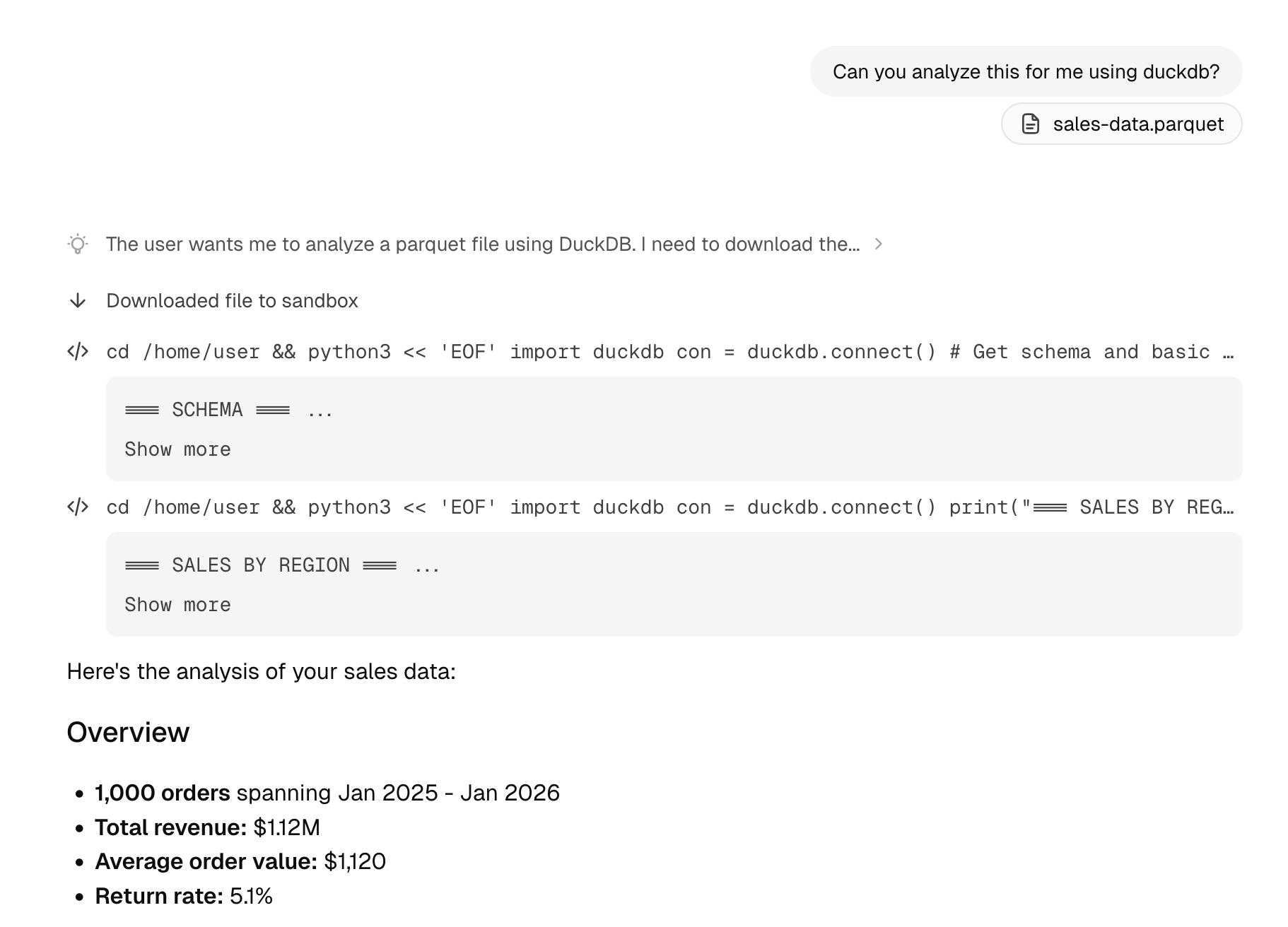
Adapt can generate various types of rich content.
### Tables
Data is automatically formatted into interactive tables:
* Sort by clicking column headers
* Search within the table
* Export to CSV
## Rich Outputs
Adapt can generate various types of rich content.
### Tables
Data is automatically formatted into interactive tables:
* Sort by clicking column headers
* Search within the table
* Export to CSV
 ### Charts
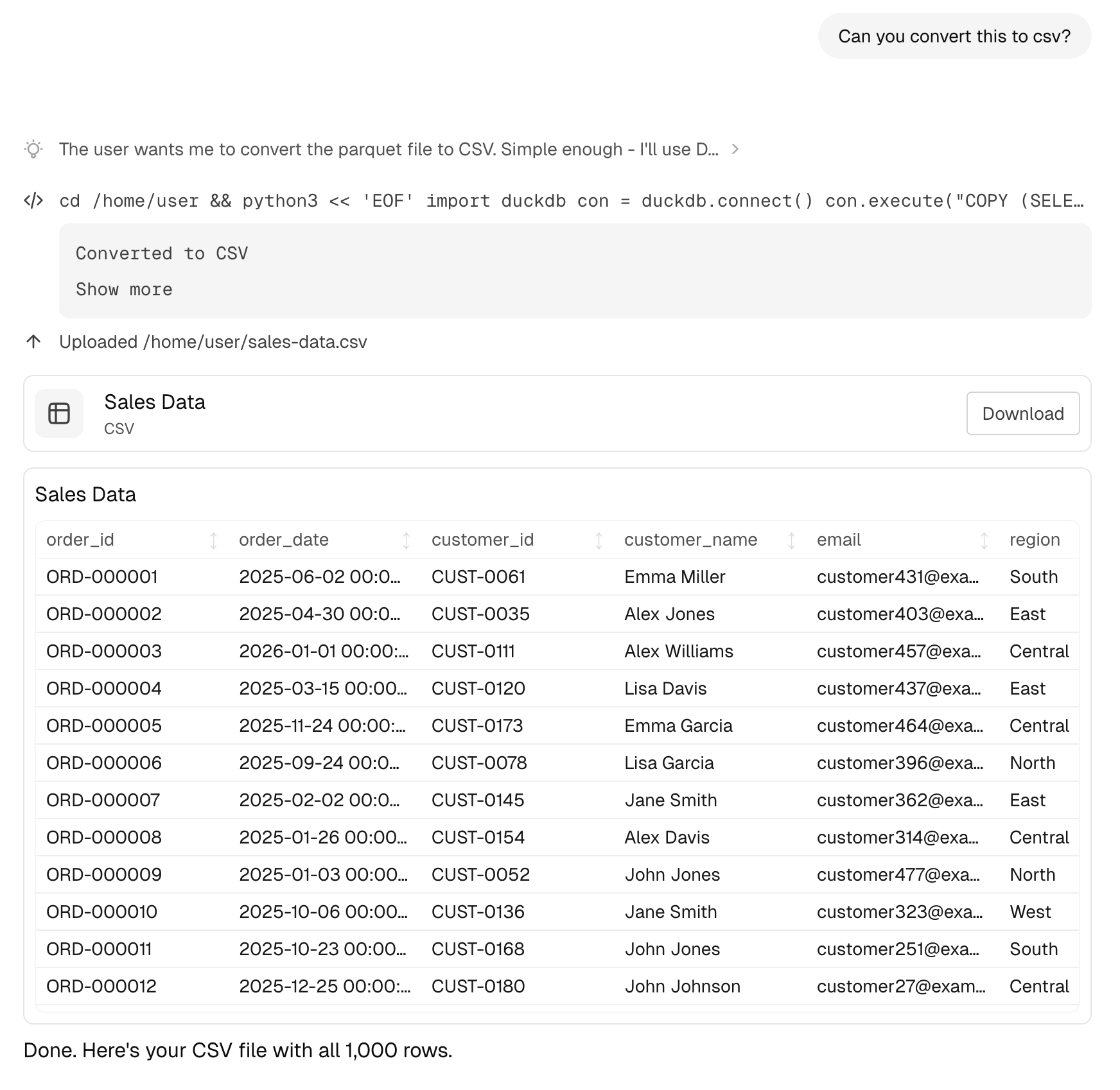
Request visualizations and Adapt will generate interactive charts.
Chart types include:
* Line charts for trends
* Bar charts for comparisons
* Pie charts for distributions
* Area charts for cumulative data
### Charts
Request visualizations and Adapt will generate interactive charts.
Chart types include:
* Line charts for trends
* Bar charts for comparisons
* Pie charts for distributions
* Area charts for cumulative data
 ### Code Execution
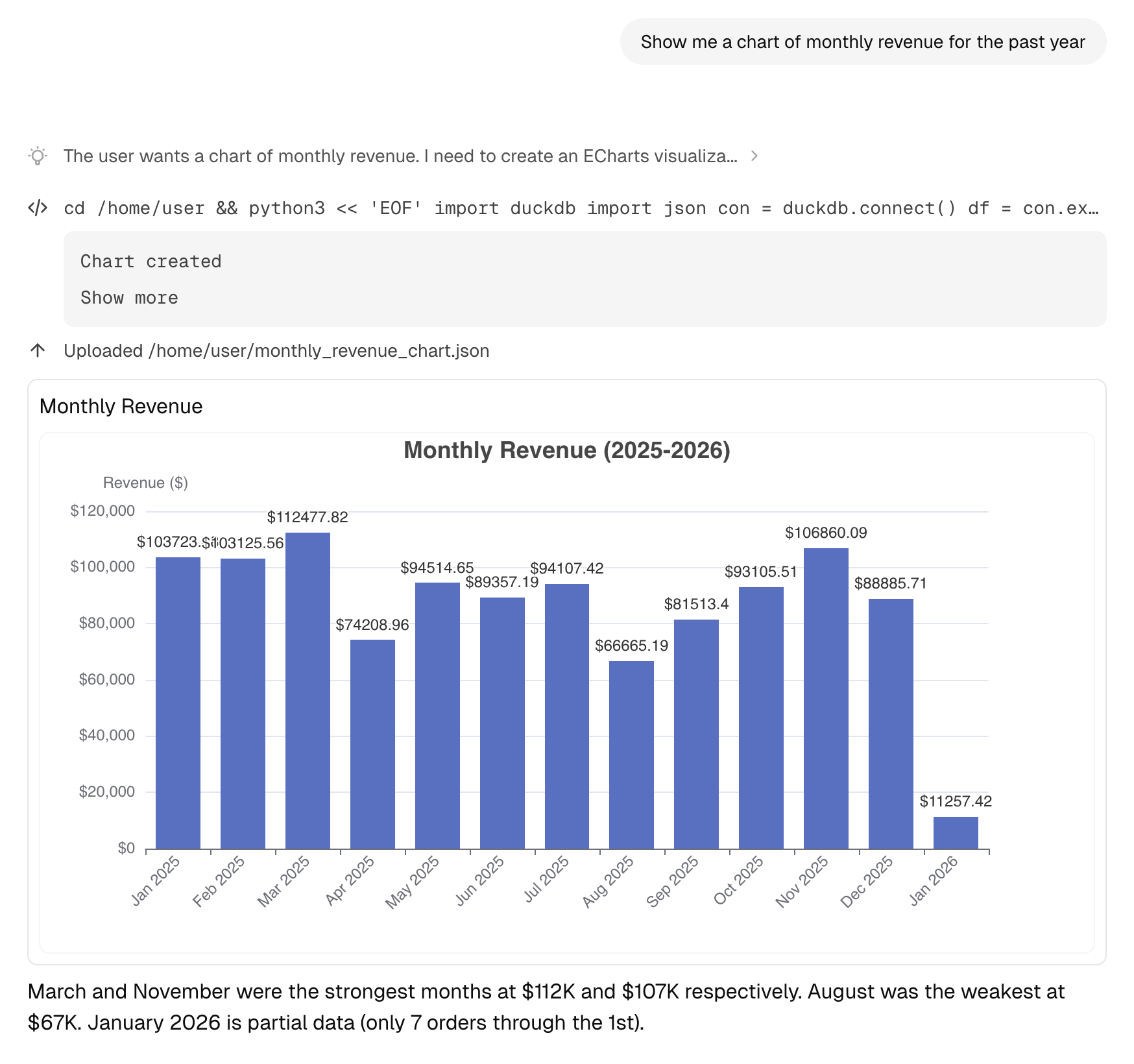
When Adapt runs code, you'll see:
* The code that was executed
* Output and results
* Any generated files or visualizations
### Images
Adapt can generate images from a prompt or edit images you upload, using a flagship image model that's continually upgraded as the space evolves. Ask for a brand-new visual or transform an attached image:
```
Generate a 1:1 logo concept for a coffee shop called "Northbound" —
minimalist, hand-drawn, earthy palette
```
```
Combine these two screenshots into a single side-by-side comparison
```
Generated and uploaded images render inline and can be downloaded directly. Supported aspect ratios: `1:1`, `3:4`, `4:3`, `9:16`, `16:9`, `2:3`, `3:2`, `21:9`. Edits inherit the source image's aspect ratio.
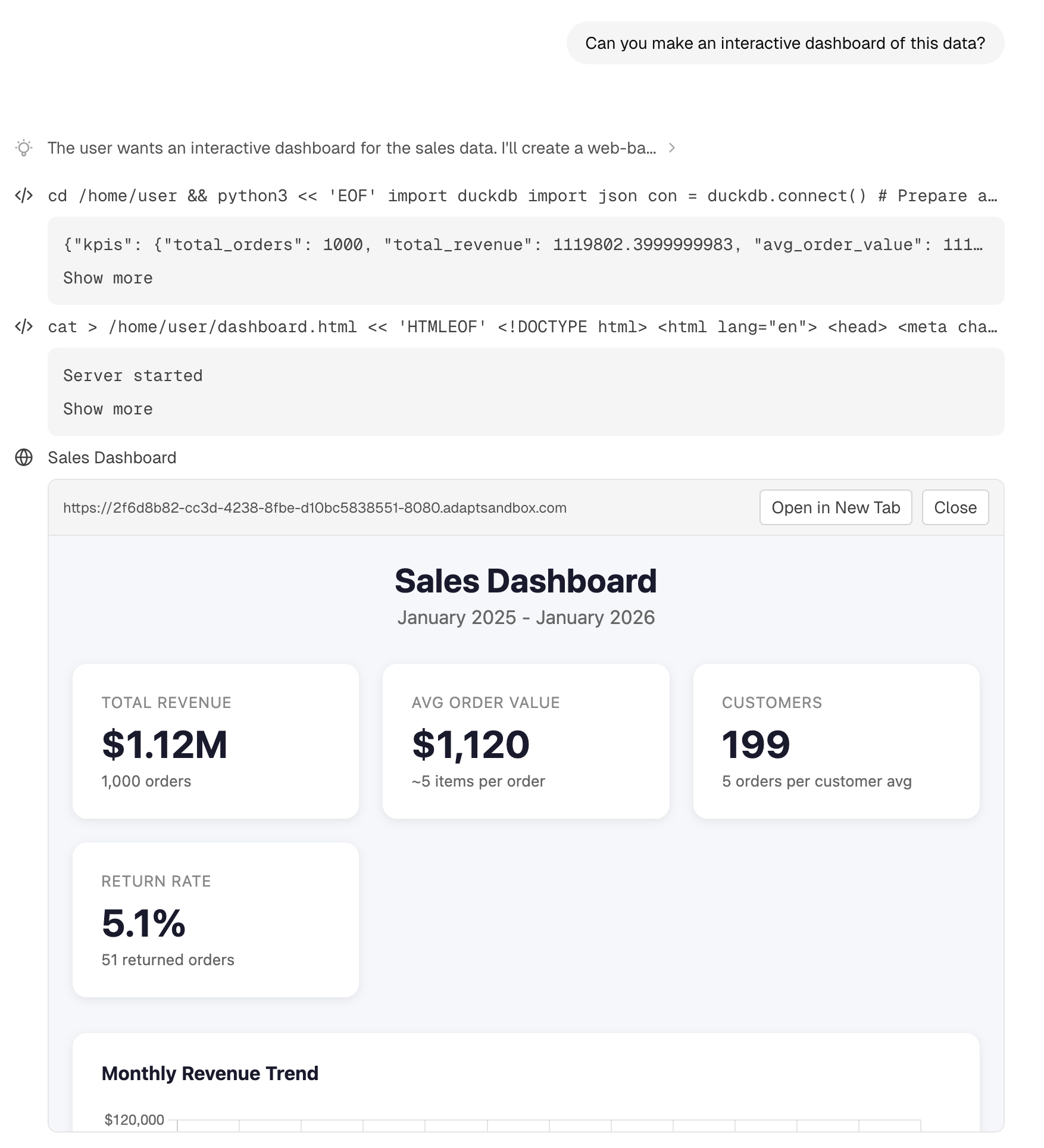
### Web Apps
Adapt can generate interactive web apps to visualize and explore your data:
* Dashboards with multiple views
* Interactive filters and controls
* Shareable with your team
### Code Execution
When Adapt runs code, you'll see:
* The code that was executed
* Output and results
* Any generated files or visualizations
### Images
Adapt can generate images from a prompt or edit images you upload, using a flagship image model that's continually upgraded as the space evolves. Ask for a brand-new visual or transform an attached image:
```
Generate a 1:1 logo concept for a coffee shop called "Northbound" —
minimalist, hand-drawn, earthy palette
```
```
Combine these two screenshots into a single side-by-side comparison
```
Generated and uploaded images render inline and can be downloaded directly. Supported aspect ratios: `1:1`, `3:4`, `4:3`, `9:16`, `16:9`, `2:3`, `3:2`, `21:9`. Edits inherit the source image's aspect ratio.
### Web Apps
Adapt can generate interactive web apps to visualize and explore your data:
* Dashboards with multiple views
* Interactive filters and controls
* Shareable with your team
 ## Organization Settings
Access settings from the sidebar menu.
### Integrations
Connect your tools:
* Data warehouses (Snowflake, Databricks)
* Business tools (HubSpot, Stripe, Intercom)
* Communication (Slack)
### Team Management
* Invite new members by email
* Manage member roles
* View pending invitations
### Billing
* View current usage
* Manage payment methods
* Download invoices
## Getting Help
Open the **Support** page from the sidebar whenever you need help. It brings everything together in one place:
* **System status** — a pill at the top shows live status and links to the [status page](https://adapt.com/status). During an incident, it surfaces the active incident directly.
* **Open a case** — click **New case**, add a subject and description, and submit. The Adapt team replies by email.
* **Quick links** — jump to **Documentation**, **Email Support** (pre-filled with your organization details), and the **Status Page**.
* **Slack Connect** — if you have the Slack integration connected, request a shared Slack Connect channel to work alongside the Adapt team.
* **Talk to sales** — book a call with the sales team for pricing questions.
## Next Steps
Use Adapt directly in Slack
Link your data sources
## Organization Settings
Access settings from the sidebar menu.
### Integrations
Connect your tools:
* Data warehouses (Snowflake, Databricks)
* Business tools (HubSpot, Stripe, Intercom)
* Communication (Slack)
### Team Management
* Invite new members by email
* Manage member roles
* View pending invitations
### Billing
* View current usage
* Manage payment methods
* Download invoices
## Getting Help
Open the **Support** page from the sidebar whenever you need help. It brings everything together in one place:
* **System status** — a pill at the top shows live status and links to the [status page](https://adapt.com/status). During an incident, it surfaces the active incident directly.
* **Open a case** — click **New case**, add a subject and description, and submit. The Adapt team replies by email.
* **Quick links** — jump to **Documentation**, **Email Support** (pre-filled with your organization details), and the **Status Page**.
* **Slack Connect** — if you have the Slack integration connected, request a shared Slack Connect channel to work alongside the Adapt team.
* **Talk to sales** — book a call with the sales team for pricing questions.
## Next Steps
Use Adapt directly in Slack
Link your data sources