> ## Documentation Index
> Fetch the complete documentation index at: https://adapt.com/docs/llms.txt
> Use this file to discover all available pages before exploring further.
# Chrome extension
> Use Adapt beside supported web pages to ask questions, work with connected data, and complete browser tasks.
The Adapt Chrome extension opens Adapt in a side panel beside the page you're viewing. Ask questions about the page, combine it with data from your connected tools, or let Adapt complete browser tasks without switching tabs.
[Add Adapt to Chrome](https://chromewebstore.google.com/detail/adapt/lpaboiblljakjkhbhadlabiggcfbbgam).
## Get started
1. Install the extension from the [Chrome Web Store](https://chromewebstore.google.com/detail/adapt/lpaboiblljakjkhbhadlabiggcfbbgam).
2. Sign in to [app.adapt.com](https://app.adapt.com). The extension uses the same session, so there is no separate login.
3. Pin Adapt to your Chrome toolbar.
4. Open a web page, select Adapt, and send a request from the side panel.
Your extension conversations use the same chat history as the Adapt web app and Slack.
## Ask about the current page
When you start a chat, the extension gives Adapt the active page's title, URL, readable content, selected text, and interactive controls. You can ask Adapt to:
* Summarize an article, document, or email thread
* Answer questions about the page
* Draft a response using the page and your connected company data
* Research a prospect while looking at their website
* Extract or compare information from a table or form
Adapt can reread the page during a task, so it can inspect the current state after navigation or a dynamic page update instead of relying only on the initial page content.
## Complete browser tasks
Describe the outcome you want in plain language:
```text theme={null}
Search for Recife and open the first result.
```
```text theme={null}
Fill this form with Acme's company details from HubSpot.
```
```text theme={null}
Open the documentation link, find the authentication section,
and summarize the required steps.
```
Adapt can use these browser actions:
| Action | What it does | Approval |
| ----------------- | ---------------------------------------------------------------------------------- | ------------------- |
| Read the page | Reads the current page as Markdown and identifies interactive controls | Automatic |
| Inspect page HTML | Reads the structure of a specific form, table, widget, or page section | Automatic |
| Fill form fields | Applies values to supported fields and dispatches input and change events | Automatic |
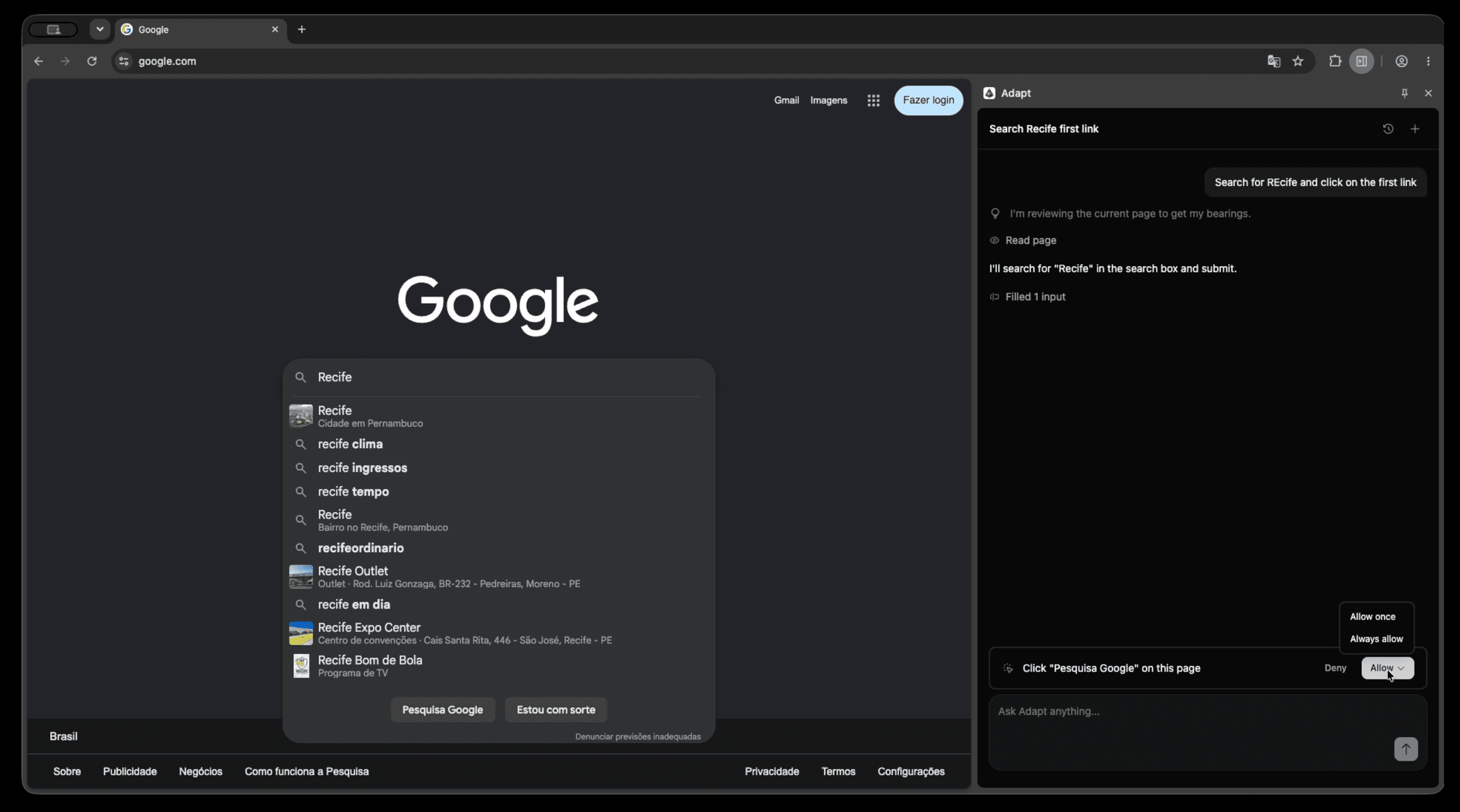
| Click a control | Clicks a specific link, button, or other control, including visible submit buttons | Required by default |
Adapt can reread the page after a click before choosing the next step.
 ## Approve browser actions
By default, clicks pause before they run. Review the action in the side panel, then choose:
* **Deny** to stop the action
* **Allow once** to run it this time
* **Always allow** to run all future clicks automatically on that same site origin in your current browser profile
“Always allow” applies to the action type, not only the control shown in the current confirmation. For example, always allowing a click permits future clicks on that origin. It does not permit actions on another origin.
Form filling does not require approval. It applies supported field values and dispatches the page's normal input and change events. Adapt does not itself click a submit control, but the page may autosave, recalculate, or submit in response to field changes.
If you navigate or reload while approval is pending, deny the action and start a new request so the preview matches the current page.
## How tabs are selected
Each request is tied to the tab that was active when you sent it. Browser actions continue in that tab even if you switch tabs while Adapt is working.
For reliable results:
* Keep the original tab and the extension side panel open until the task finishes
* Start a new request after switching to a different tab
* Approve requested actions before the confirmation expires
If the original tab closes, the next browser action returns an error. Closing the side panel disconnects the active browser session, and pending actions expire instead of running later.
## Current limitations
* Browser actions are available only when you send the request from the Chrome extension with the side panel open.
* Adapt acts only on the tab pinned when the request was sent. It cannot select or move to another open tab, although the pinned tab can continue running in the background if you switch tabs.
* Chrome system pages (`chrome://`), the Chrome Web Store, and some protected or non-HTML pages cannot be read or changed.
* Actions target the page's top-level standard DOM. Controls inside iframes or shadow roots may not be available.
* Form filling supports value-based inputs, text areas, selects, and content-editable fields. Checkbox and radio toggling and file uploads are not supported.
* Page reads are limited to 200,000 characters. HTML inspection returns the first five matches and is limited to 50,000 characters.
* Chrome and Chromium-based browsers are supported. A Firefox build is not published yet.
## Related
* [Web app](/docs/platform/web-app)
* [Slack app](/docs/platform/slack-app)
* [Integrations overview](/docs/integrations/overview)
## Approve browser actions
By default, clicks pause before they run. Review the action in the side panel, then choose:
* **Deny** to stop the action
* **Allow once** to run it this time
* **Always allow** to run all future clicks automatically on that same site origin in your current browser profile
“Always allow” applies to the action type, not only the control shown in the current confirmation. For example, always allowing a click permits future clicks on that origin. It does not permit actions on another origin.
Form filling does not require approval. It applies supported field values and dispatches the page's normal input and change events. Adapt does not itself click a submit control, but the page may autosave, recalculate, or submit in response to field changes.
If you navigate or reload while approval is pending, deny the action and start a new request so the preview matches the current page.
## How tabs are selected
Each request is tied to the tab that was active when you sent it. Browser actions continue in that tab even if you switch tabs while Adapt is working.
For reliable results:
* Keep the original tab and the extension side panel open until the task finishes
* Start a new request after switching to a different tab
* Approve requested actions before the confirmation expires
If the original tab closes, the next browser action returns an error. Closing the side panel disconnects the active browser session, and pending actions expire instead of running later.
## Current limitations
* Browser actions are available only when you send the request from the Chrome extension with the side panel open.
* Adapt acts only on the tab pinned when the request was sent. It cannot select or move to another open tab, although the pinned tab can continue running in the background if you switch tabs.
* Chrome system pages (`chrome://`), the Chrome Web Store, and some protected or non-HTML pages cannot be read or changed.
* Actions target the page's top-level standard DOM. Controls inside iframes or shadow roots may not be available.
* Form filling supports value-based inputs, text areas, selects, and content-editable fields. Checkbox and radio toggling and file uploads are not supported.
* Page reads are limited to 200,000 characters. HTML inspection returns the first five matches and is limited to 50,000 characters.
* Chrome and Chromium-based browsers are supported. A Firefox build is not published yet.
## Related
* [Web app](/docs/platform/web-app)
* [Slack app](/docs/platform/slack-app)
* [Integrations overview](/docs/integrations/overview)