> ## Documentation Index
> Fetch the complete documentation index at: https://adapt.com/docs/llms.txt
> Use this file to discover all available pages before exploring further.
# Integrations Overview
> Connect Adapt to your business tools and data sources
Adapt connects to your business tools, bringing all your data into one
intelligent interface. The more tools you connect, the more powerful Adapt
becomes.
## The integrations catalog
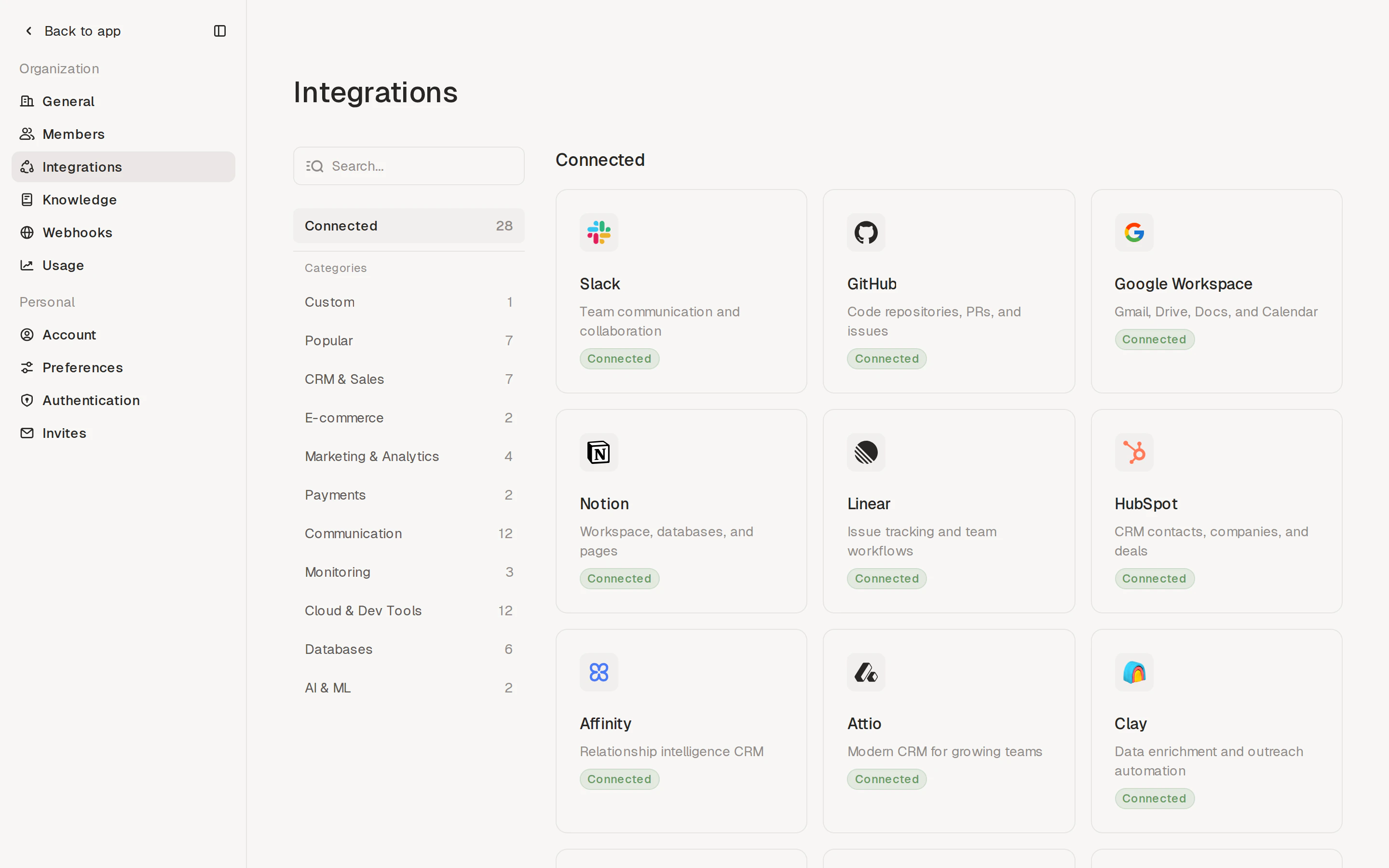
Every available integration lives in a single catalog under
**Settings → Integrations**. Browse by category, search by name, or jump
straight to anything your organization has already connected.
 Each integration uses one of two connection types, which you'll see noted on
its detail page:
* **OAuth** — sign in with your account; Adapt manages the credentials for you.
Used by Slack, GitHub, Google Workspace, Notion, Linear, HubSpot, and others.
* **API key** — paste a key, token, or connection string from the provider's
settings. Used by Postgres, Snowflake, Stripe, Sentry, and most other
developer-focused tools.
### Sidebar at a glance
The left sidebar lets you:
* **Search** every integration by name
* Filter to **Connected** to see only what your organization has wired up
* Filter to **Custom** to add your own integration (see [Custom integrations](#custom-integrations) below)
* Filter to **Popular** to see the most-used integrations
* Browse by category: CRM & Sales, E-commerce, Marketing & Analytics,
Payments, Communication, Monitoring, Cloud & Dev Tools, Databases, AI & ML
Each row shows a count, so you can see at a glance what's available.
## Connecting an integration
Click any integration tile to open its detail page. The detail page shows the
provider's category, connection type, and any active connections in your
organization.
Each integration uses one of two connection types, which you'll see noted on
its detail page:
* **OAuth** — sign in with your account; Adapt manages the credentials for you.
Used by Slack, GitHub, Google Workspace, Notion, Linear, HubSpot, and others.
* **API key** — paste a key, token, or connection string from the provider's
settings. Used by Postgres, Snowflake, Stripe, Sentry, and most other
developer-focused tools.
### Sidebar at a glance
The left sidebar lets you:
* **Search** every integration by name
* Filter to **Connected** to see only what your organization has wired up
* Filter to **Custom** to add your own integration (see [Custom integrations](#custom-integrations) below)
* Filter to **Popular** to see the most-used integrations
* Browse by category: CRM & Sales, E-commerce, Marketing & Analytics,
Payments, Communication, Monitoring, Cloud & Dev Tools, Databases, AI & ML
Each row shows a count, so you can see at a glance what's available.
## Connecting an integration
Click any integration tile to open its detail page. The detail page shows the
provider's category, connection type, and any active connections in your
organization.
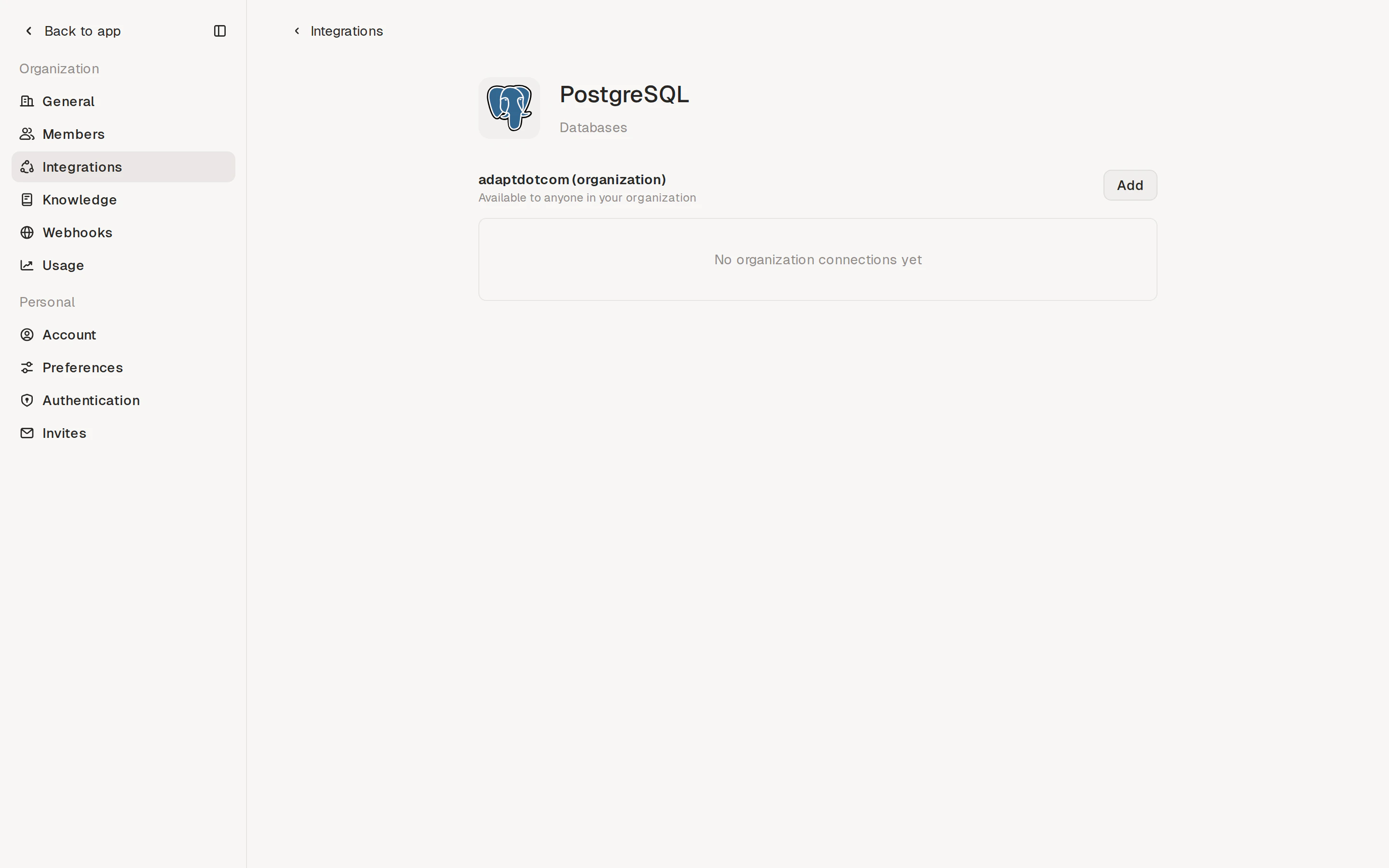 From here, click **Add** to start a new connection. The flow that opens depends
on the connection type — OAuth or API key.
For OAuth integrations like **Slack**, clicking **Add** redirects you to
the provider's authorization page in a new window.
Adapt opens Slack's OAuth consent screen. You'll be asked to pick the
Slack workspace you want to connect.
Slack lists the permissions Adapt is requesting (reading channels and
messages, posting on your behalf, reading user profiles, etc.). Click
**Allow** to grant access.
You're redirected to the Slack detail page in Adapt and the new
connection appears under **adaptdotcom (organization)** with a green
status dot. Adapt manages refresh tokens and re-auth from this point on
— there's nothing to copy or paste.
Open a new chat and ask Adapt something that uses the connection — for
example, *"Summarize yesterday's #engineering channel"* or *"DM Patrick
the Q3 numbers"*. Adapt will pick up the new connection automatically.
You can connect multiple Slack workspaces — click **Add** again to
authorize a second one. Adapt will use whichever workspace matches the
channel or user you reference, and falls back to asking if it's
ambiguous.
For API-key integrations like **Postgres**, clicking **Add** opens a modal
where you paste your credentials. Adapt stores them securely and uses them
only when it needs to query the service on your behalf.
From here, click **Add** to start a new connection. The flow that opens depends
on the connection type — OAuth or API key.
For OAuth integrations like **Slack**, clicking **Add** redirects you to
the provider's authorization page in a new window.
Adapt opens Slack's OAuth consent screen. You'll be asked to pick the
Slack workspace you want to connect.
Slack lists the permissions Adapt is requesting (reading channels and
messages, posting on your behalf, reading user profiles, etc.). Click
**Allow** to grant access.
You're redirected to the Slack detail page in Adapt and the new
connection appears under **adaptdotcom (organization)** with a green
status dot. Adapt manages refresh tokens and re-auth from this point on
— there's nothing to copy or paste.
Open a new chat and ask Adapt something that uses the connection — for
example, *"Summarize yesterday's #engineering channel"* or *"DM Patrick
the Q3 numbers"*. Adapt will pick up the new connection automatically.
You can connect multiple Slack workspaces — click **Add** again to
authorize a second one. Adapt will use whichever workspace matches the
channel or user you reference, and falls back to asking if it's
ambiguous.
For API-key integrations like **Postgres**, clicking **Add** opens a modal
where you paste your credentials. Adapt stores them securely and uses them
only when it needs to query the service on your behalf.
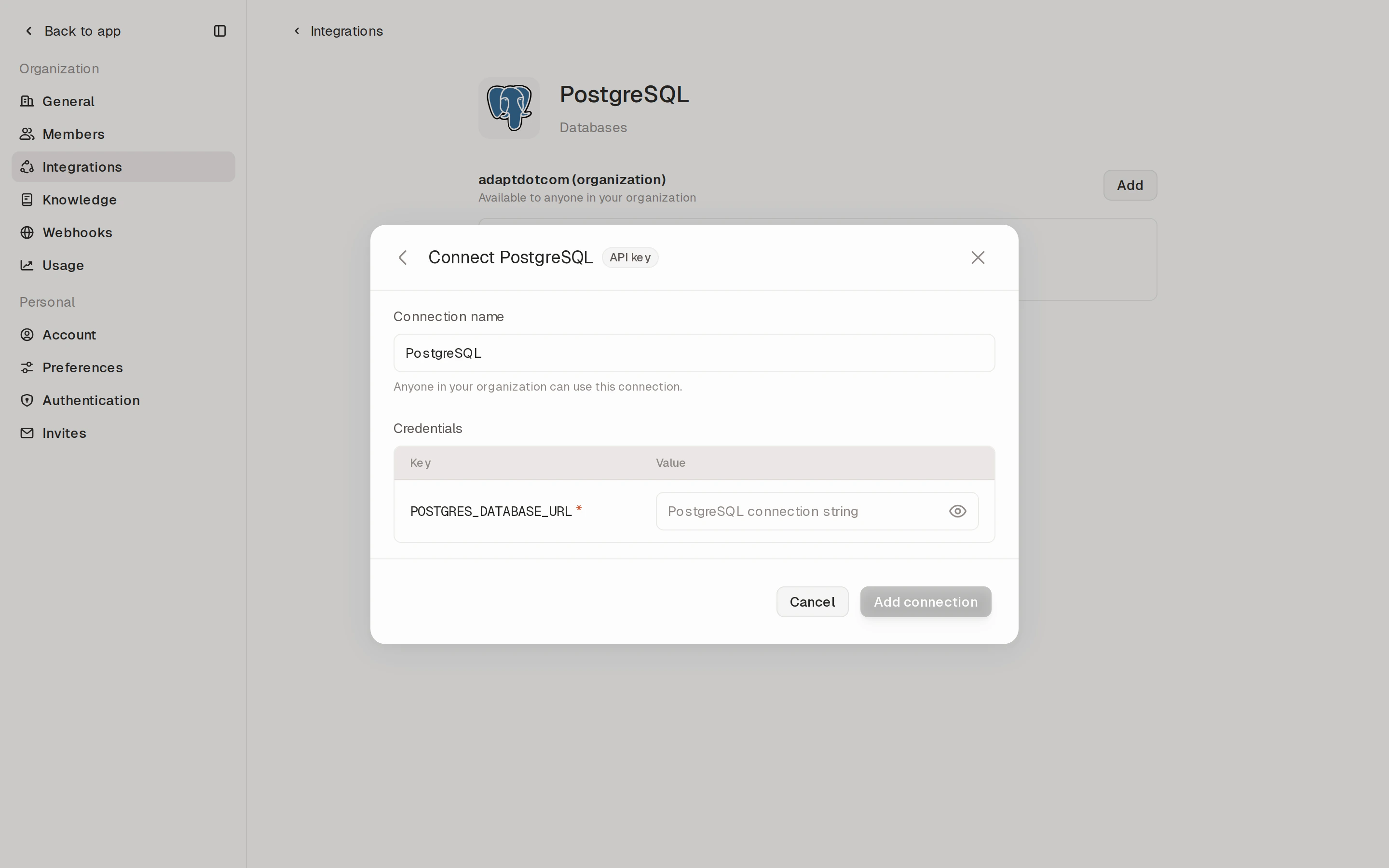 The **Connect Postgres** modal opens with an "API key" badge in the
header.
The **Connection name** field is pre-filled with `Postgres`. Rename it
if you're connecting more than one database (for example, `Postgres
prod` and `Postgres staging`) so it's obvious which is which when Adapt
chooses one to query.
Fill in the required credential — for Postgres, that's a single
`POSTGRES_DATABASE_URL` connection string in the form
`postgres://user:password@host:5432/dbname`. Other API-key integrations
will list their own required keys here (for example, `STRIPE_API_KEY`,
`SENTRY_AUTH_TOKEN`).
The new connection appears under **adaptdotcom (organization)** and
becomes available to everyone in your workspace.
Open a new chat and ask Adapt something that uses the connection — for
example, *"How many users signed up in the last 7 days?"* for Postgres,
or *"What did we charge yesterday?"* for Stripe.
Naming credentials with the convention the provider's docs use (for
example, `STRIPE_API_KEY` instead of `key1`) makes it easier for Adapt to
pick them up automatically when it decides which tool to call.
After connecting, the integration shows up under the **Connected** filter and
its tile gains a "Connected" badge. Anyone in your organization can use the
connection from their chats.
## Personal connections
Every integration's detail page has two stacked panels:
* **`{Organization name}` (organization)** — shared with everyone in your
workspace. Use this for accounts that should serve the whole team, like the
company Slack or a shared HubSpot.
* **`{Your name}` (personal)** — visible only to you. Use this for accounts
Adapt should act on for you alone, like your own Gmail, your personal
GitHub, or a Postgres credential scoped to your work.
Each panel has its own **Add** button and its own list of connections.
Personal connections are supported for both OAuth integrations (Slack,
GitHub, Google Workspace, Notion, Linear, HubSpot, and others) and API-key
integrations (Stripe, Snowflake, Postgres, Sentry — anything in the catalog).
Adapt routes between them automatically: ask it to "draft a reply to Sarah's
email" and it uses your personal Gmail; ask it to "post the launch recap in
\#engineering" and it uses the org's Slack.
When you connect a personal OAuth account, you choose exactly which scopes
Adapt gets. Google Workspace, for example, lets you toggle Email, Calendar,
Contacts, and Drive independently, each as read or write.
### Why use a personal connection?
The clearest example is GitHub. With only an organization GitHub connection,
asking Adapt to open a pull request opens it as the `adaptcom` bot — the PR
and the commits are attributed to the bot account, not the person who asked
for the change. Connect your personal GitHub as a personal integration and
Adapt opens the PR as you, the commits are attributed to you, and reviewers
can see at a glance who's driving the work.
## OAuth integrations
OAuth is the simplest way to connect — sign in with your account, approve the
permissions, and you're done. Adapt handles refresh tokens and re-auth in the
background.
Workspace-wide access
Codebase access
Issue tracking
CRM & marketing
Drive, Slides, Sheets
Docs & wikis
## API key integrations
For everything else, paste your API key (or connection string) into the
integration's detail page. Credentials are stored securely and used only when
Adapt queries that service on your behalf.
The full catalog is below. Integrations with their own setup guide link to
that guide; the rest open directly in **Settings → Integrations**.
#### CRM & Sales
CRM & marketing
Modern CRM
Data enrichment
Enterprise CRM
Relationship intelligence CRM
Sales engagement & data
Email & SMS marketing
#### E-commerce
Storefront, orders, customers
WordPress storefront
#### Marketing & Analytics
Web & app traffic
SEO & backlinks
Product analytics
Product analytics
#### Payments
Payments & subscriptions
Spend management & cards
#### Communication
Workspace messaging
Customer messaging
Support tickets
Meeting transcripts
Meeting recordings
Meeting transcripts
Revenue conversations
Transactional email
Transactional email
SMS & voice
Community messaging
Lifecycle messaging
#### Monitoring & Compliance
Error monitoring
Compliance automation
Infrastructure & APM
#### Cloud & Dev Tools
Code, issues, PRs
Issue tracking
Docs & wikis
GCP services
EC2, S3, Lambda
Microsoft cloud
Deployments & hosting
Work management
Issue tracking
Wiki & docs
Design files
#### Databases
Data warehouse
Lakehouse
Relational database
Managed Postgres backend
Serverless Postgres
Relational database
Document database
Spreadsheet-database
#### AI & ML
GPT, embeddings, image
Claude models
## Custom integrations
If a tool you use isn't in the catalog yet, you can bring your own. Filter the
catalog to **Custom** and click **Add custom integration** — you'll be
prompted to name the integration and add the credentials Adapt should use
when calling its API.
The **Connect Postgres** modal opens with an "API key" badge in the
header.
The **Connection name** field is pre-filled with `Postgres`. Rename it
if you're connecting more than one database (for example, `Postgres
prod` and `Postgres staging`) so it's obvious which is which when Adapt
chooses one to query.
Fill in the required credential — for Postgres, that's a single
`POSTGRES_DATABASE_URL` connection string in the form
`postgres://user:password@host:5432/dbname`. Other API-key integrations
will list their own required keys here (for example, `STRIPE_API_KEY`,
`SENTRY_AUTH_TOKEN`).
The new connection appears under **adaptdotcom (organization)** and
becomes available to everyone in your workspace.
Open a new chat and ask Adapt something that uses the connection — for
example, *"How many users signed up in the last 7 days?"* for Postgres,
or *"What did we charge yesterday?"* for Stripe.
Naming credentials with the convention the provider's docs use (for
example, `STRIPE_API_KEY` instead of `key1`) makes it easier for Adapt to
pick them up automatically when it decides which tool to call.
After connecting, the integration shows up under the **Connected** filter and
its tile gains a "Connected" badge. Anyone in your organization can use the
connection from their chats.
## Personal connections
Every integration's detail page has two stacked panels:
* **`{Organization name}` (organization)** — shared with everyone in your
workspace. Use this for accounts that should serve the whole team, like the
company Slack or a shared HubSpot.
* **`{Your name}` (personal)** — visible only to you. Use this for accounts
Adapt should act on for you alone, like your own Gmail, your personal
GitHub, or a Postgres credential scoped to your work.
Each panel has its own **Add** button and its own list of connections.
Personal connections are supported for both OAuth integrations (Slack,
GitHub, Google Workspace, Notion, Linear, HubSpot, and others) and API-key
integrations (Stripe, Snowflake, Postgres, Sentry — anything in the catalog).
Adapt routes between them automatically: ask it to "draft a reply to Sarah's
email" and it uses your personal Gmail; ask it to "post the launch recap in
\#engineering" and it uses the org's Slack.
When you connect a personal OAuth account, you choose exactly which scopes
Adapt gets. Google Workspace, for example, lets you toggle Email, Calendar,
Contacts, and Drive independently, each as read or write.
### Why use a personal connection?
The clearest example is GitHub. With only an organization GitHub connection,
asking Adapt to open a pull request opens it as the `adaptcom` bot — the PR
and the commits are attributed to the bot account, not the person who asked
for the change. Connect your personal GitHub as a personal integration and
Adapt opens the PR as you, the commits are attributed to you, and reviewers
can see at a glance who's driving the work.
## OAuth integrations
OAuth is the simplest way to connect — sign in with your account, approve the
permissions, and you're done. Adapt handles refresh tokens and re-auth in the
background.
Workspace-wide access
Codebase access
Issue tracking
CRM & marketing
Drive, Slides, Sheets
Docs & wikis
## API key integrations
For everything else, paste your API key (or connection string) into the
integration's detail page. Credentials are stored securely and used only when
Adapt queries that service on your behalf.
The full catalog is below. Integrations with their own setup guide link to
that guide; the rest open directly in **Settings → Integrations**.
#### CRM & Sales
CRM & marketing
Modern CRM
Data enrichment
Enterprise CRM
Relationship intelligence CRM
Sales engagement & data
Email & SMS marketing
#### E-commerce
Storefront, orders, customers
WordPress storefront
#### Marketing & Analytics
Web & app traffic
SEO & backlinks
Product analytics
Product analytics
#### Payments
Payments & subscriptions
Spend management & cards
#### Communication
Workspace messaging
Customer messaging
Support tickets
Meeting transcripts
Meeting recordings
Meeting transcripts
Revenue conversations
Transactional email
Transactional email
SMS & voice
Community messaging
Lifecycle messaging
#### Monitoring & Compliance
Error monitoring
Compliance automation
Infrastructure & APM
#### Cloud & Dev Tools
Code, issues, PRs
Issue tracking
Docs & wikis
GCP services
EC2, S3, Lambda
Microsoft cloud
Deployments & hosting
Work management
Issue tracking
Wiki & docs
Design files
#### Databases
Data warehouse
Lakehouse
Relational database
Managed Postgres backend
Serverless Postgres
Relational database
Document database
Spreadsheet-database
#### AI & ML
GPT, embeddings, image
Claude models
## Custom integrations
If a tool you use isn't in the catalog yet, you can bring your own. Filter the
catalog to **Custom** and click **Add custom integration** — you'll be
prompted to name the integration and add the credentials Adapt should use
when calling its API.
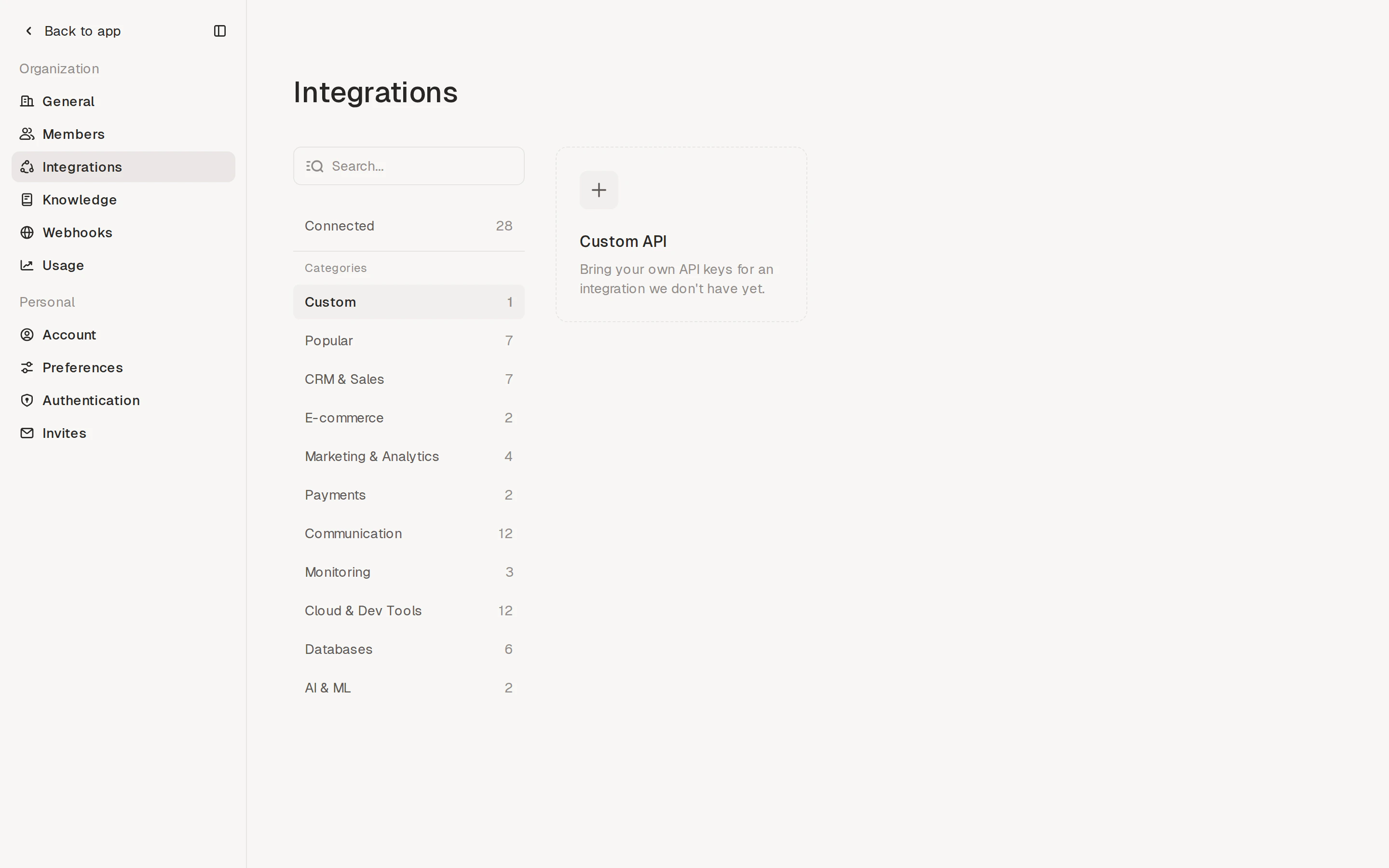 Once added, custom integrations behave like any other connection: they appear
under the **Connected** filter, can be edited or removed at any time, and are
available to everyone in your organization.
## Connection health
Adapt monitors your OAuth connections and tells you when one stops working —
for example, when a token expires, a grant is revoked, or a token refresh
fails. You don't have to wait for a workflow to break to find out.
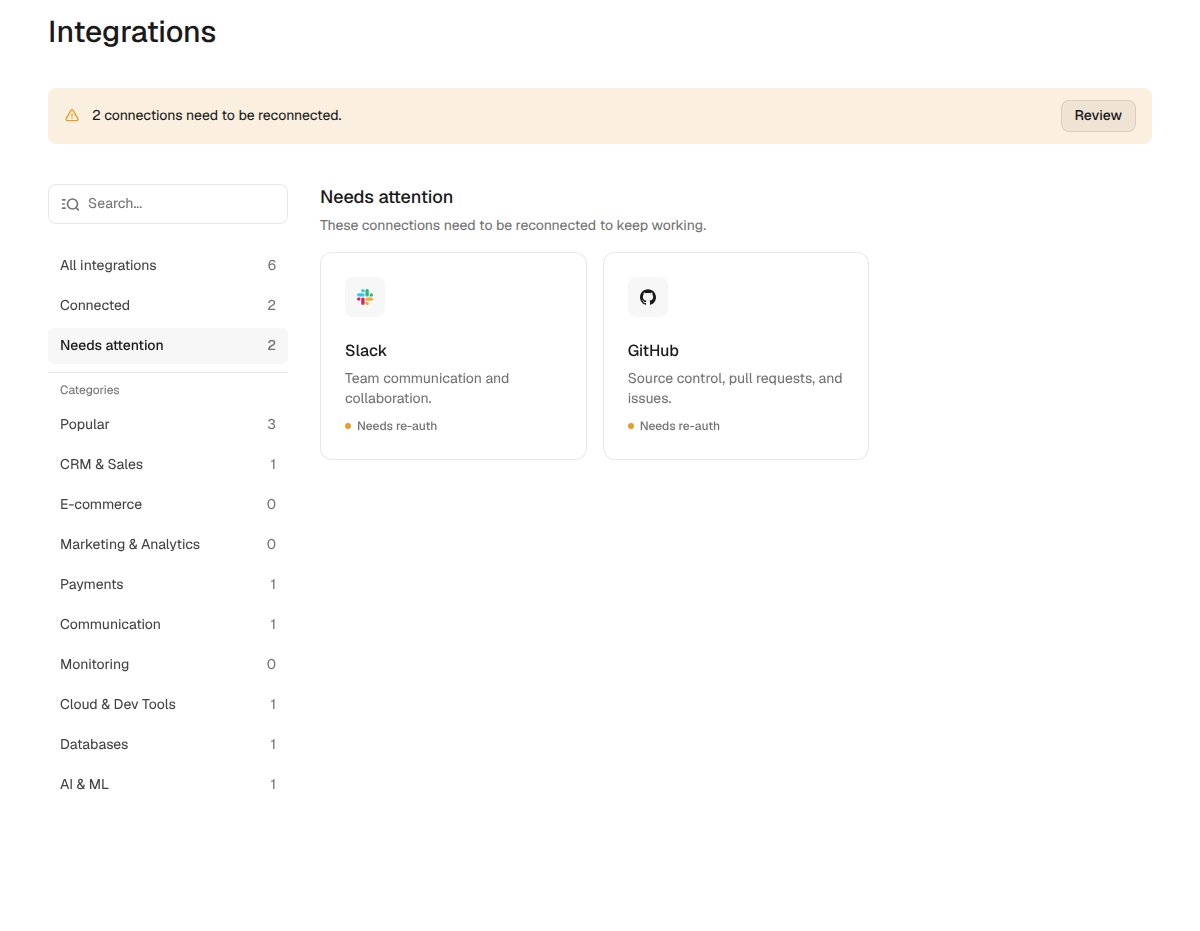
When a connection needs attention, you'll see it in three places:
* A **banner** at the top of **Settings → Integrations** counts the affected
connections and links to them with a **Review** button.
* The integration's tile shows an amber **Needs re-auth** dot instead of the
green **Connected** dot.
* A **Needs attention** filter in the sidebar groups every connection that
needs reconnecting.
Once added, custom integrations behave like any other connection: they appear
under the **Connected** filter, can be edited or removed at any time, and are
available to everyone in your organization.
## Connection health
Adapt monitors your OAuth connections and tells you when one stops working —
for example, when a token expires, a grant is revoked, or a token refresh
fails. You don't have to wait for a workflow to break to find out.
When a connection needs attention, you'll see it in three places:
* A **banner** at the top of **Settings → Integrations** counts the affected
connections and links to them with a **Review** button.
* The integration's tile shows an amber **Needs re-auth** dot instead of the
green **Connected** dot.
* A **Needs attention** filter in the sidebar groups every connection that
needs reconnecting.
 To fix a flagged connection, open the integration and reconnect it.
Re-authorizing clears the error and returns the connection to healthy
automatically.
## Managing connections
Click any **Connected** integration to open its detail page, where you can:
* See the active connections, who added them, and the permissions granted
* For **OAuth** (e.g., Slack): re-authorize if a connection needs attention,
add another workspace, or disconnect entirely
* For **API key** (e.g., Postgres): rotate the credential, add additional
secrets, or remove the connection
Connections are scoped to your organization, so changes apply to everyone in
the workspace.
## Next Steps
Connect your workspace
Connect your database
To fix a flagged connection, open the integration and reconnect it.
Re-authorizing clears the error and returns the connection to healthy
automatically.
## Managing connections
Click any **Connected** integration to open its detail page, where you can:
* See the active connections, who added them, and the permissions granted
* For **OAuth** (e.g., Slack): re-authorize if a connection needs attention,
add another workspace, or disconnect entirely
* For **API key** (e.g., Postgres): rotate the credential, add additional
secrets, or remove the connection
Connections are scoped to your organization, so changes apply to everyone in
the workspace.
## Next Steps
Connect your workspace
Connect your database