> ## Documentation Index
> Fetch the complete documentation index at: https://adapt.com/docs/llms.txt
> Use this file to discover all available pages before exploring further.
# Google Workspace
> Connect Google Drive, Docs, and Sheets to Adapt
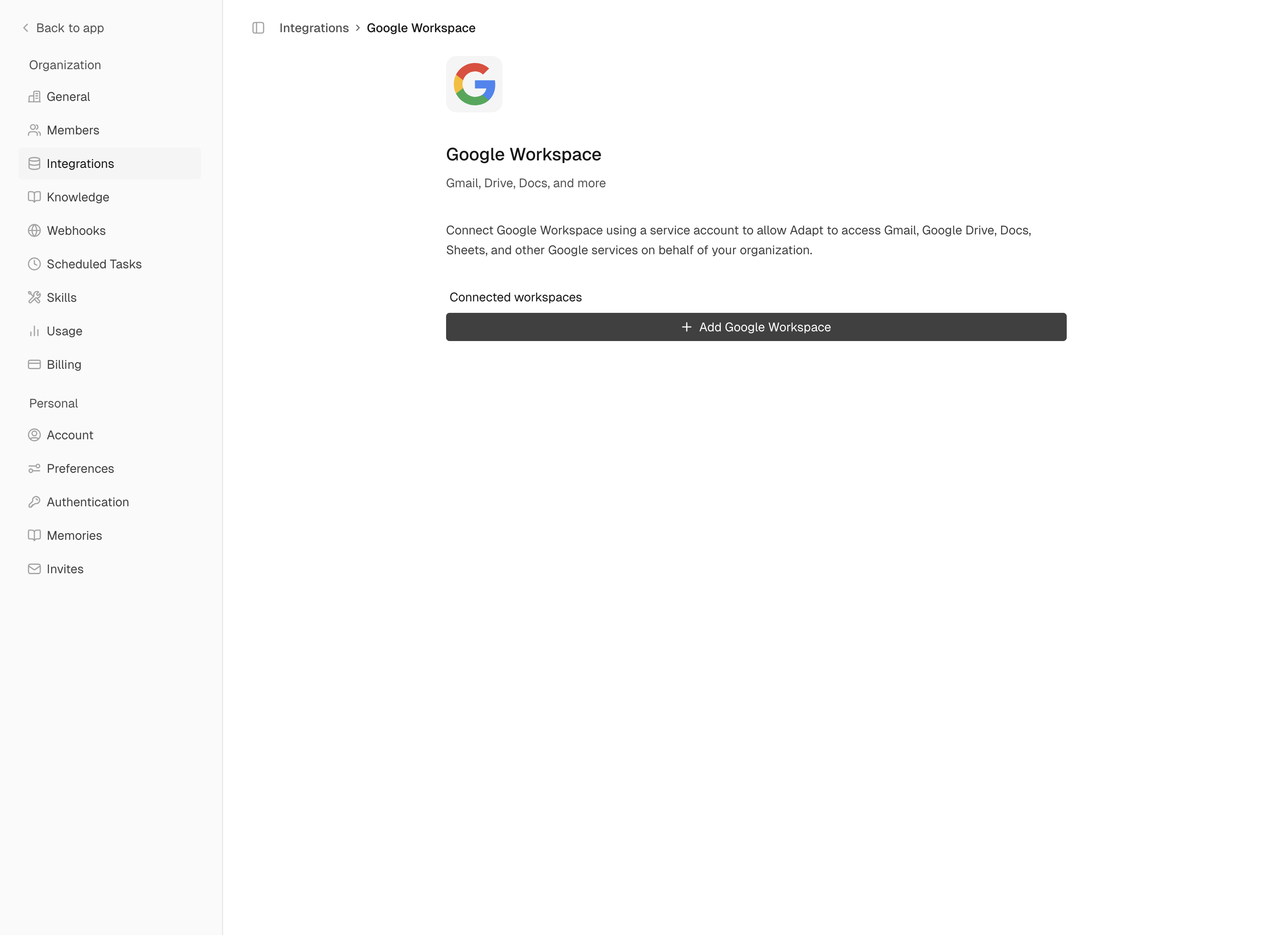 Connect Google Workspace to let Adapt access Google Drive, Docs, Sheets,
and Slides on behalf of your organization using a service account with
domain-wide delegation.
## Prerequisites
Before setting up, you'll need:
* **A Google Cloud account** -- if your organization doesn't have one yet, [create a Google Cloud account](https://cloud.google.com/free) first. You'll need this to access the Google Cloud Console and create a service account. If your organization already uses GCP with Adapt, see the [GCP integration guide](/integrations/gcp) for details.
* **Google Workspace admin access** to configure domain-wide delegation
* **Google Cloud Console access** to create a service account
* A user email that the service account will impersonate
## Setup
### Step 1: Create a Google Cloud Project
Go to [console.cloud.google.com](https://console.cloud.google.com) and sign in with your Google Workspace admin account.
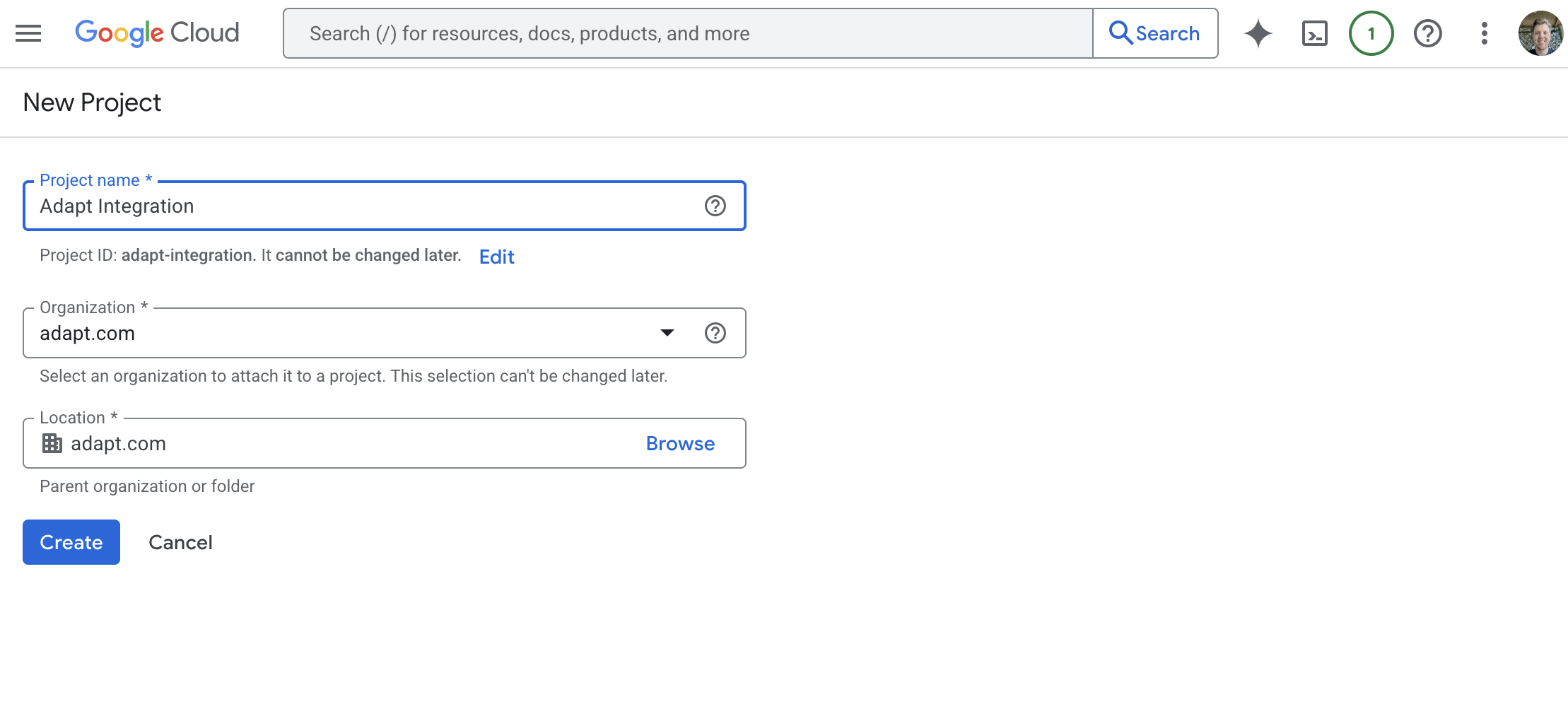
Click the project dropdown at the top, then **New Project**. Name it something like "Adapt Integration".
Connect Google Workspace to let Adapt access Google Drive, Docs, Sheets,
and Slides on behalf of your organization using a service account with
domain-wide delegation.
## Prerequisites
Before setting up, you'll need:
* **A Google Cloud account** -- if your organization doesn't have one yet, [create a Google Cloud account](https://cloud.google.com/free) first. You'll need this to access the Google Cloud Console and create a service account. If your organization already uses GCP with Adapt, see the [GCP integration guide](/integrations/gcp) for details.
* **Google Workspace admin access** to configure domain-wide delegation
* **Google Cloud Console access** to create a service account
* A user email that the service account will impersonate
## Setup
### Step 1: Create a Google Cloud Project
Go to [console.cloud.google.com](https://console.cloud.google.com) and sign in with your Google Workspace admin account.
Click the project dropdown at the top, then **New Project**. Name it something like "Adapt Integration".
 Make sure your new project is selected in the project dropdown before continuing.
### Step 2: Enable Required APIs
In the left sidebar, go to **APIs & Services > Library**.
Make sure your new project is selected in the project dropdown before continuing.
### Step 2: Enable Required APIs
In the left sidebar, go to **APIs & Services > Library**.
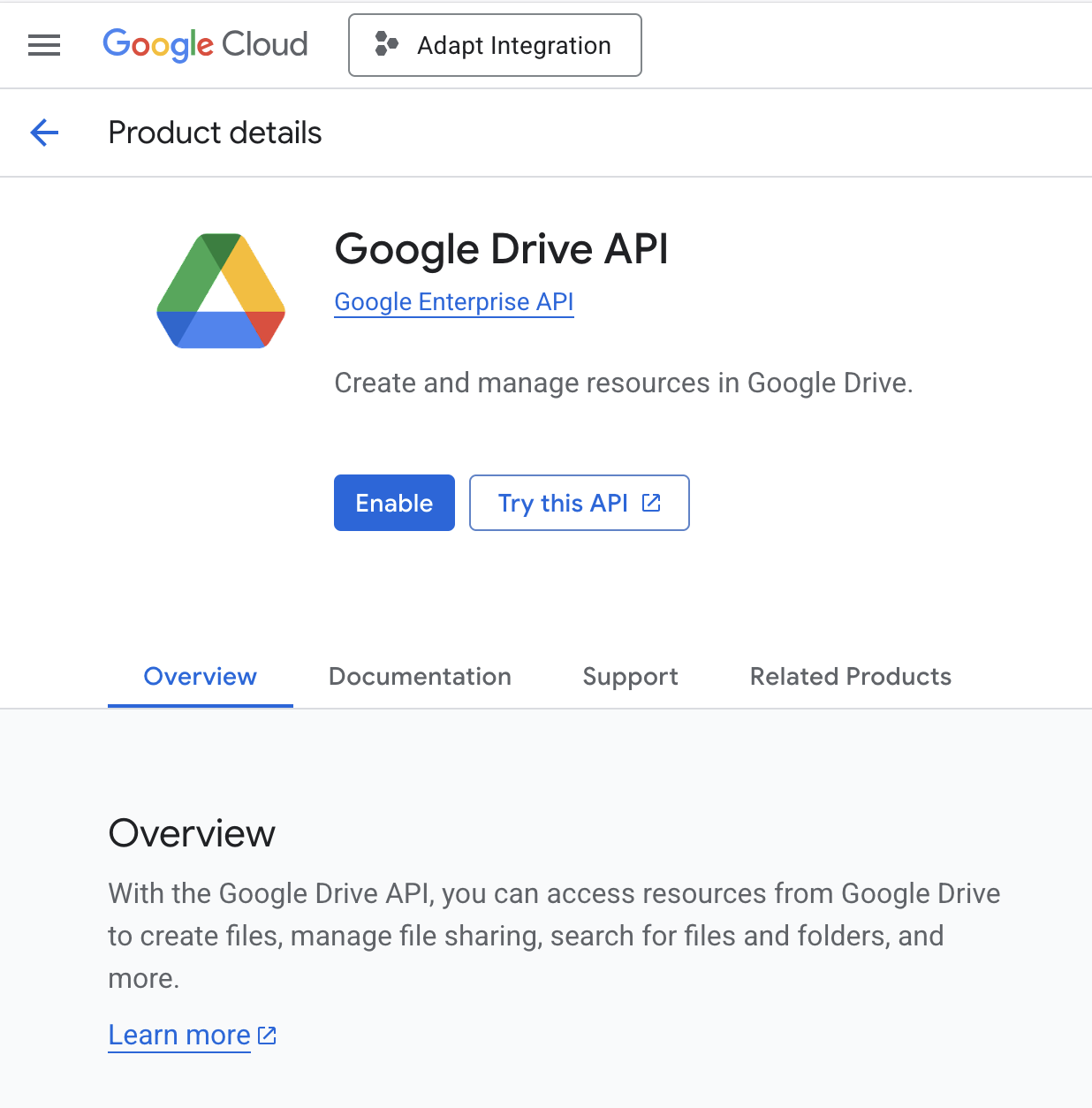
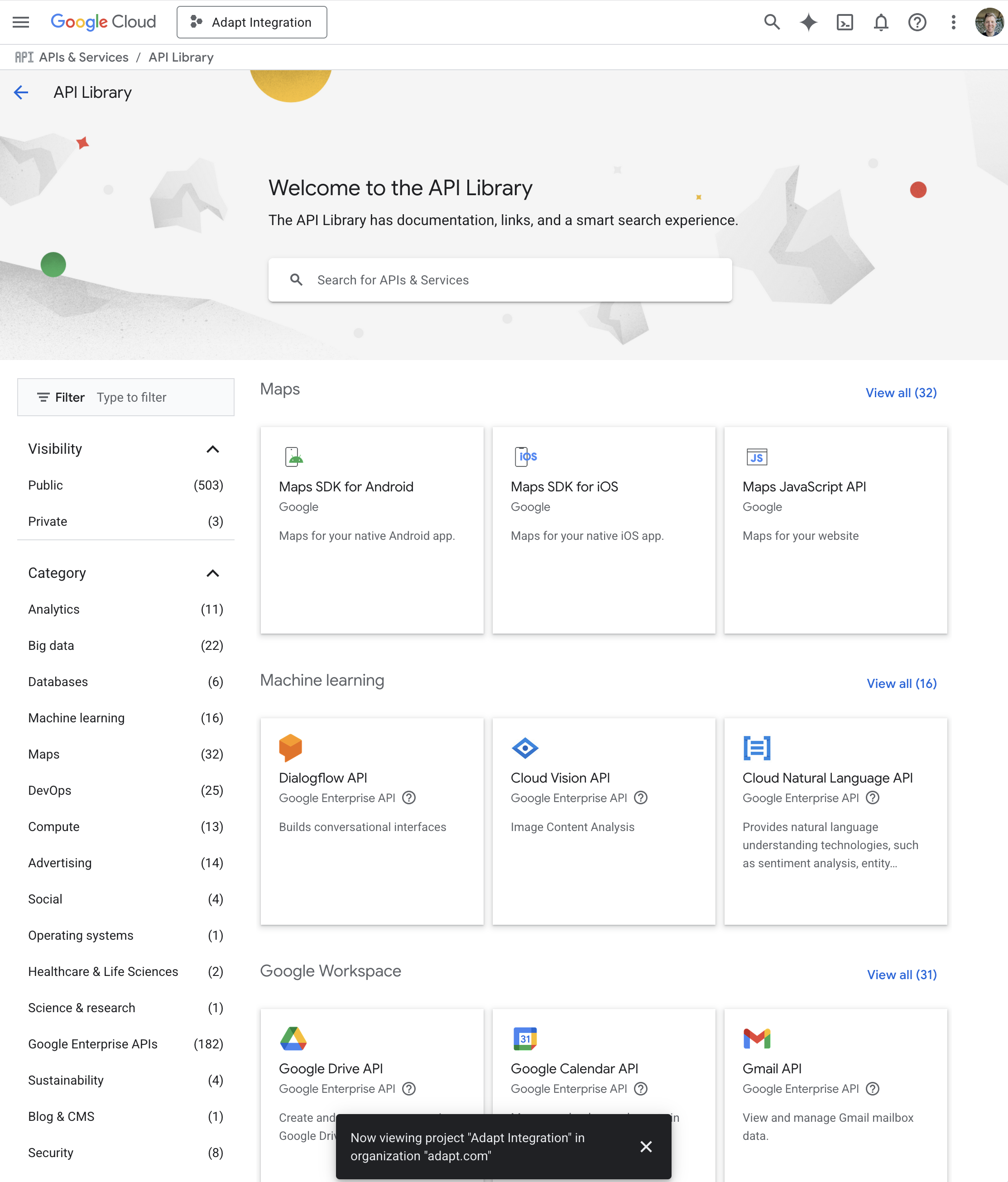 Search for and enable each of these APIs:
| API | Purpose |
| --------------------- | ---------------------------- |
| **Google Drive API** | Access files and folders |
| **Google Docs API** | Read and write documents |
| **Google Sheets API** | Read and write spreadsheets |
| **Google Slides API** | Read and write presentations |
Search for and enable each of these APIs:
| API | Purpose |
| --------------------- | ---------------------------- |
| **Google Drive API** | Access files and folders |
| **Google Docs API** | Read and write documents |
| **Google Sheets API** | Read and write spreadsheets |
| **Google Slides API** | Read and write presentations |
 ### Step 3: Create a Service Account
Navigate to **IAM & Admin > Service Accounts** in the left sidebar.
### Step 3: Create a Service Account
Navigate to **IAM & Admin > Service Accounts** in the left sidebar.
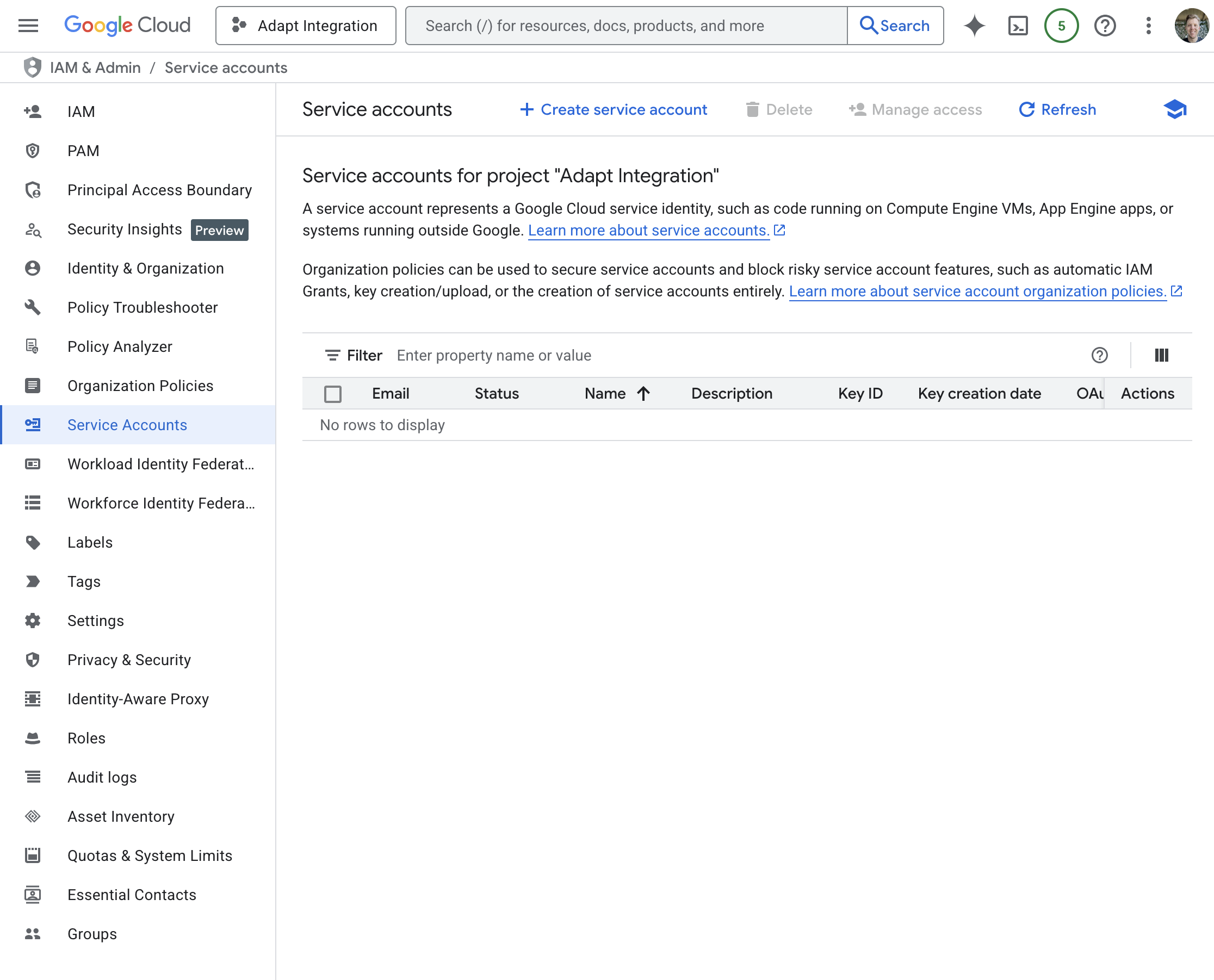 Click **Create Service Account** at the top.
* **Name**: `adapt-integration`
* **Description**: "Service account for Adapt integration with Google Workspace"
Click **Create Service Account** at the top.
* **Name**: `adapt-integration`
* **Description**: "Service account for Adapt integration with Google Workspace"
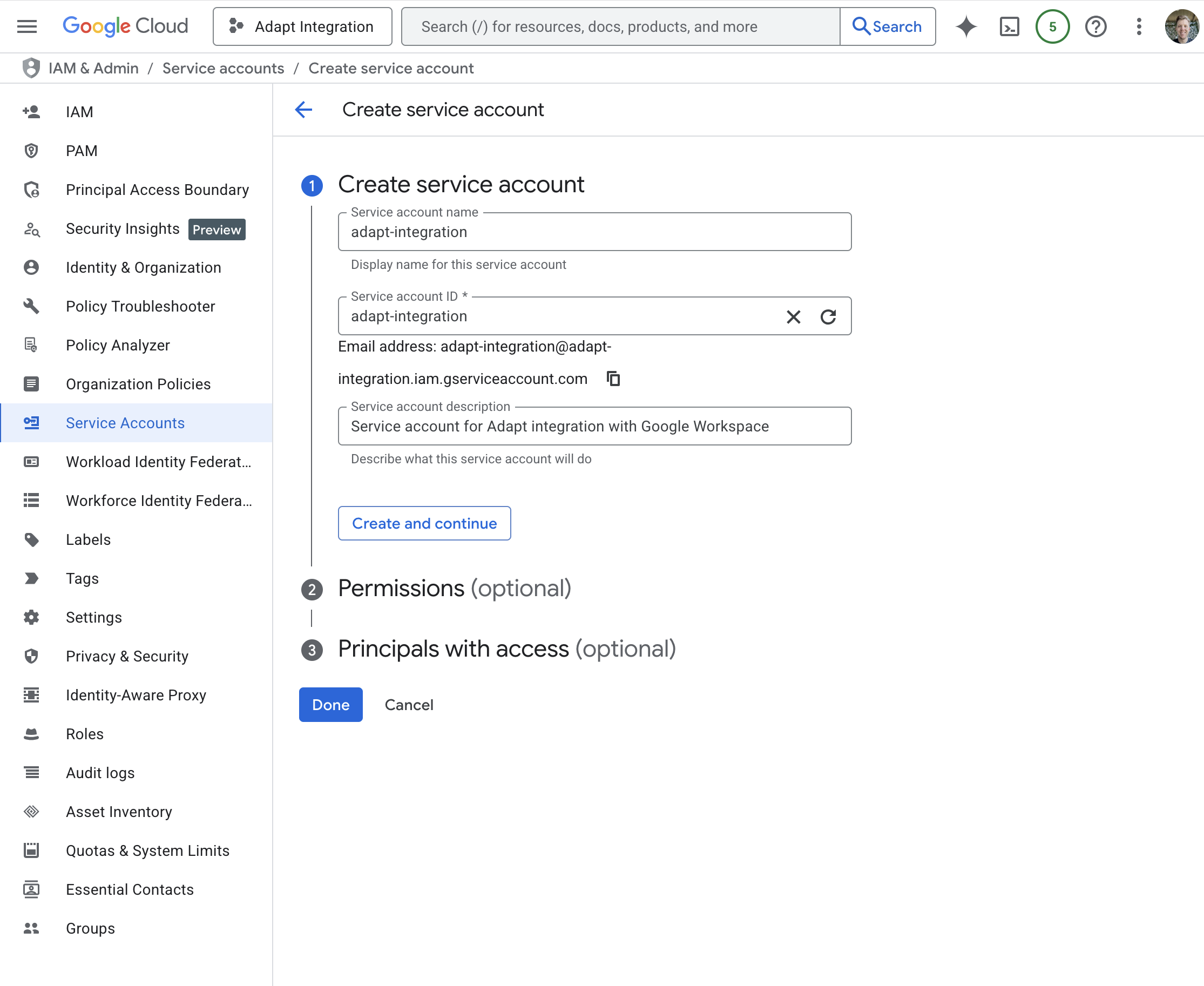 You can skip the "Grant this service account access" and "Grant users access" steps. Click **Done**.
Click on your new service account, go to the **Keys** tab, and click **Add Key > Create new key**.
* Select **JSON** format
* Click **Create**
You can skip the "Grant this service account access" and "Grant users access" steps. Click **Done**.
Click on your new service account, go to the **Keys** tab, and click **Add Key > Create new key**.
* Select **JSON** format
* Click **Create**
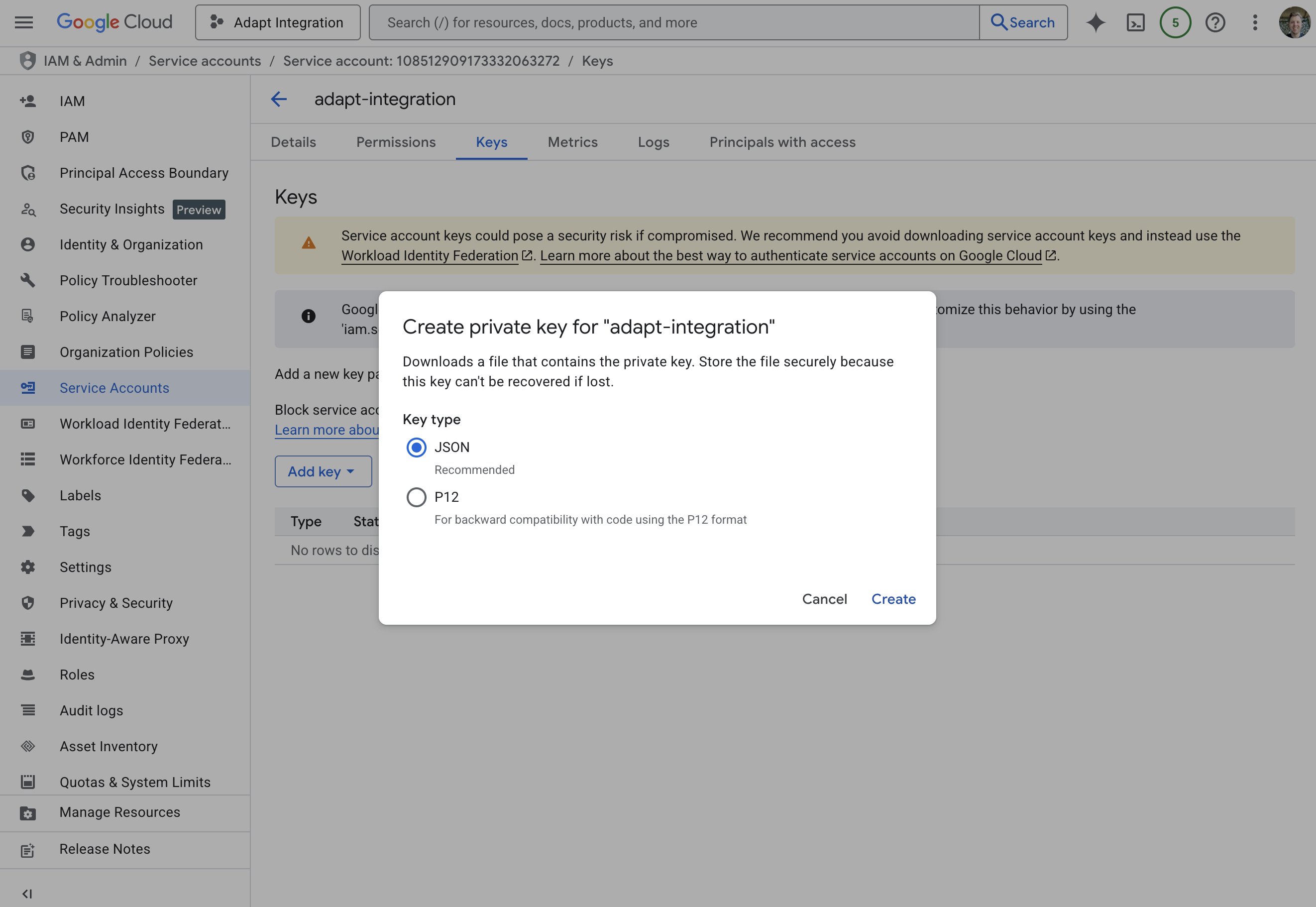 Save this JSON file securely. You'll need it to connect Adapt, and it cannot be downloaded again.
### Step 4: Configure Domain-Wide Delegation
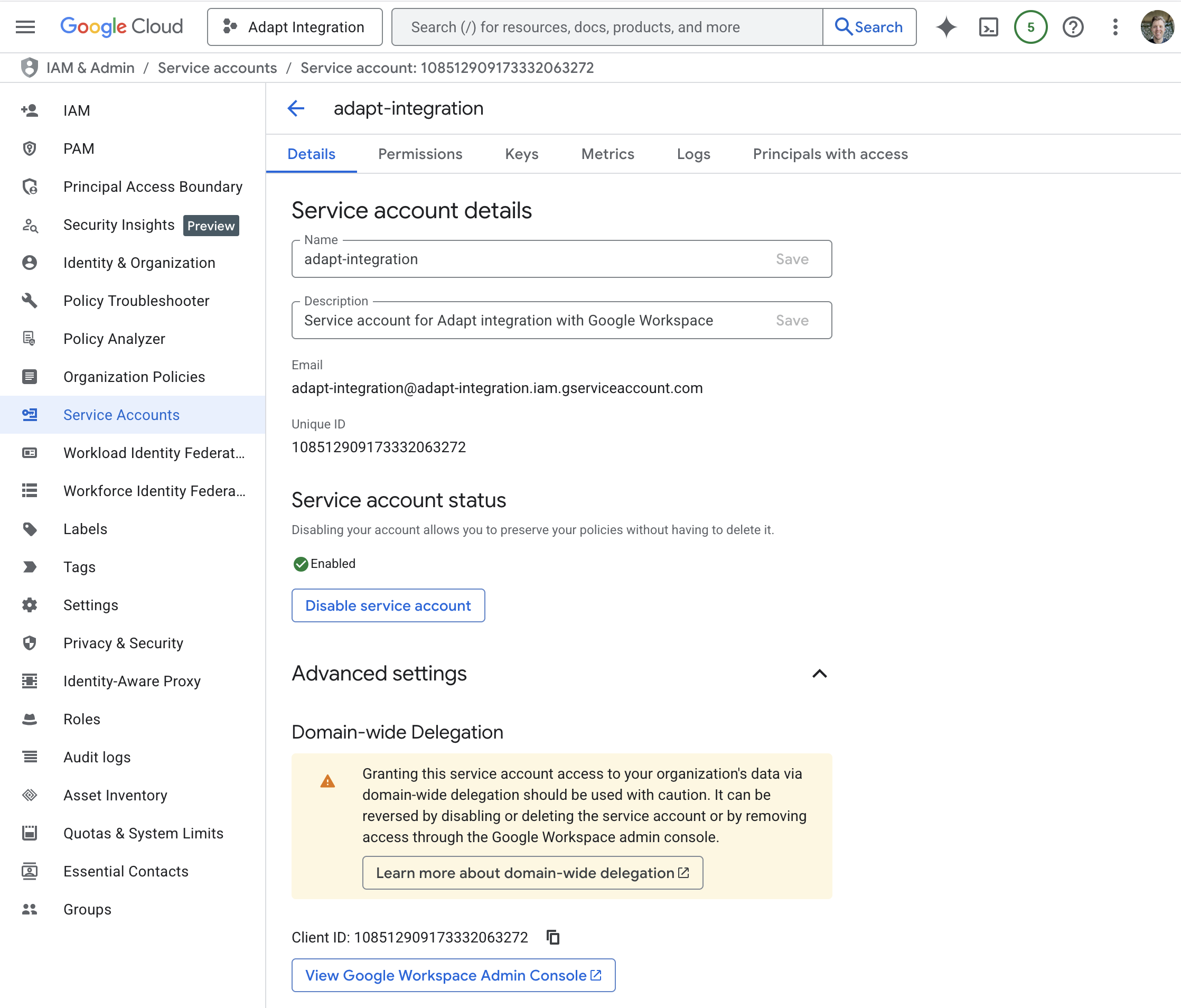
In the service account details, click **Advanced Settings**, and note the
**Client ID** of the service account.
Save this JSON file securely. You'll need it to connect Adapt, and it cannot be downloaded again.
### Step 4: Configure Domain-Wide Delegation
In the service account details, click **Advanced Settings**, and note the
**Client ID** of the service account.
 Go to [admin.google.com](https://admin.google.com) and navigate to **Security > Access and data control > API controls**.
Click **Manage Domain Wide Delegation**, then **Add new**.
Enter the **Client ID** for the service account, then add the OAuth scopes matching the access level you'll choose in Adapt (comma-separated):
**For read & write access:**
```
https://www.googleapis.com/auth/drive,https://www.googleapis.com/auth/spreadsheets,https://www.googleapis.com/auth/documents,https://www.googleapis.com/auth/presentations
```
**For read-only access:**
```
https://www.googleapis.com/auth/drive.readonly,https://www.googleapis.com/auth/spreadsheets.readonly,https://www.googleapis.com/auth/documents.readonly,https://www.googleapis.com/auth/presentations.readonly
```
Go to [admin.google.com](https://admin.google.com) and navigate to **Security > Access and data control > API controls**.
Click **Manage Domain Wide Delegation**, then **Add new**.
Enter the **Client ID** for the service account, then add the OAuth scopes matching the access level you'll choose in Adapt (comma-separated):
**For read & write access:**
```
https://www.googleapis.com/auth/drive,https://www.googleapis.com/auth/spreadsheets,https://www.googleapis.com/auth/documents,https://www.googleapis.com/auth/presentations
```
**For read-only access:**
```
https://www.googleapis.com/auth/drive.readonly,https://www.googleapis.com/auth/spreadsheets.readonly,https://www.googleapis.com/auth/documents.readonly,https://www.googleapis.com/auth/presentations.readonly
```
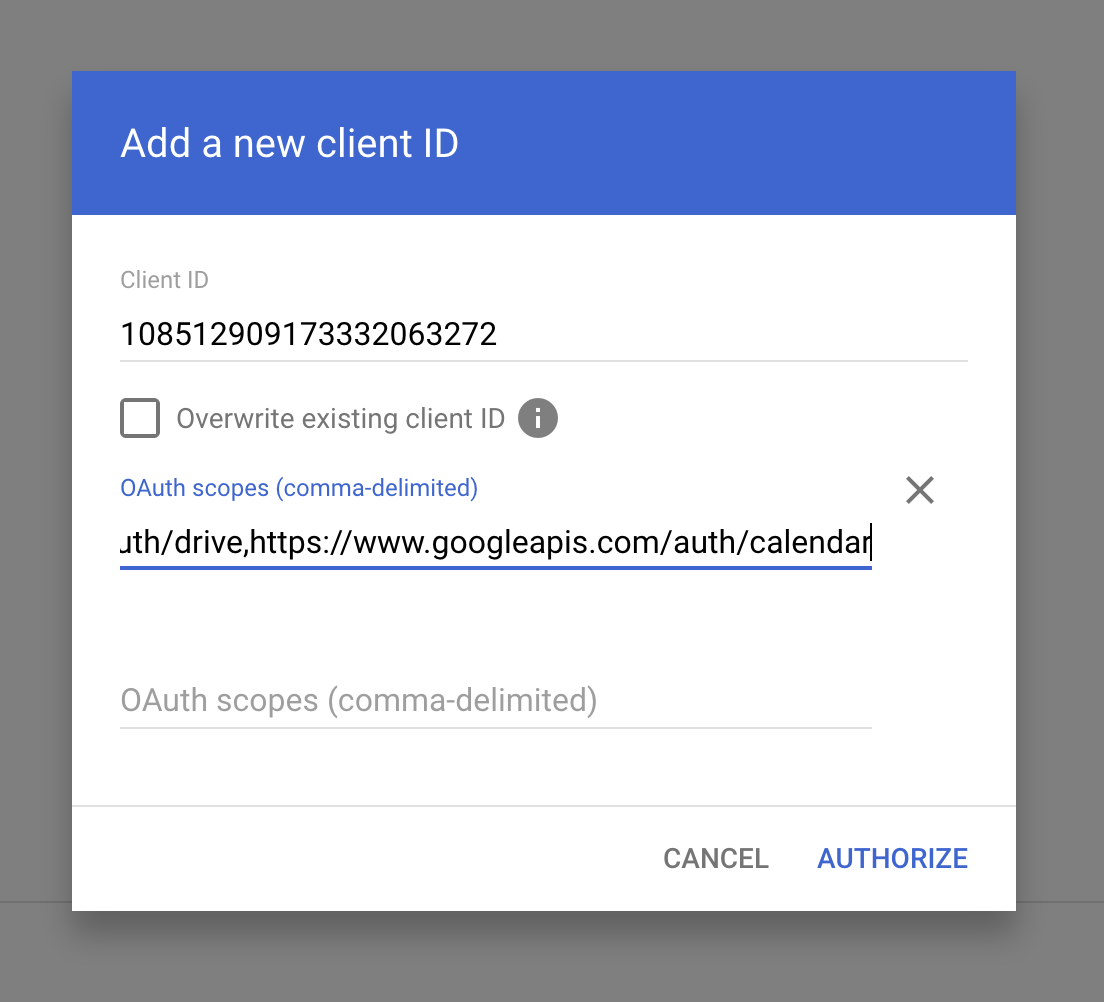 Click **Authorize** to complete domain-wide delegation setup.
### Step 5: Connect to Adapt
In Adapt, navigate to **Settings > Integrations > Google Workspace**.
Click **Add Google Workspace** to open the connection dialog.
* **Service Account JSON**: Paste the entire contents of the JSON key file
for your service account.
* **Fixed User Email**: Enter the email of a user in your domain that Adapt should impersonate (e.g., `adapt@yourdomain.com`)
* **Access Level**: Choose **Read & Write** or **Read-only** -- this must match the scopes you configured in Step 4.
Click **Authorize** to complete domain-wide delegation setup.
### Step 5: Connect to Adapt
In Adapt, navigate to **Settings > Integrations > Google Workspace**.
Click **Add Google Workspace** to open the connection dialog.
* **Service Account JSON**: Paste the entire contents of the JSON key file
for your service account.
* **Fixed User Email**: Enter the email of a user in your domain that Adapt should impersonate (e.g., `adapt@yourdomain.com`)
* **Access Level**: Choose **Read & Write** or **Read-only** -- this must match the scopes you configured in Step 4.
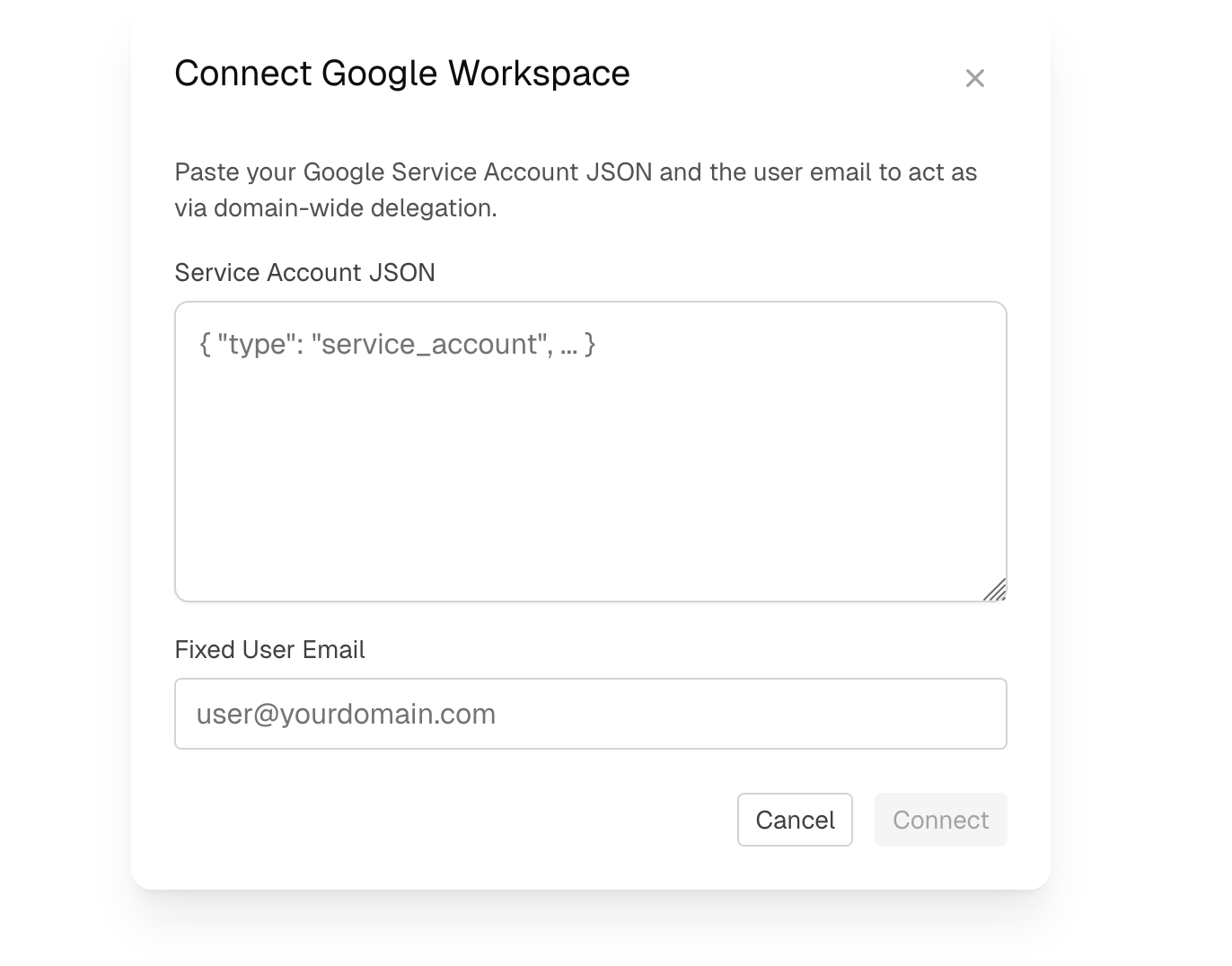 Click **Connect** to complete the setup.
## Permissions
Depending on the access level you chose during setup, Adapt will have:
| Permission | Read-Only | Read & Write |
| ------------------------- | :-------: | :----------: |
| Drive - Read files | ✓ | ✓ |
| Drive - Create/edit files | | ✓ |
All access is performed by impersonating the **Fixed User Email** you specified during setup. Adapt will have the same access as that user within the authorized scopes.
## Capabilities
With Google Workspace connected, Adapt can help you work with your organization's documents and communications.
### Examples
Read and analyze documents:
```
Summarize the product roadmap doc in our Drive
```
Create content:
```
Draft a project proposal doc based on our discussion and create a Google doc for it.
```
## Troubleshooting
### "Unauthorized" or "Access denied" errors
* Check that the OAuth scopes in Admin Console match what Adapt needs
* Ensure the Fixed User Email is a valid user in your domain
### "API not enabled" errors
* Return to the Google Cloud Console and verify all required APIs are enabled
* Make sure you're in the correct project
### Changes not appearing
* Domain-wide delegation can take a few minutes to propagate
* Try disconnecting and reconnecting the integration
## Security Considerations
* **Anyone in your organization can access what Adapt can access.** The organization connection impersonates a single Fixed User Email, so any document that user can open is reachable by everyone in your organization through Adapt. If content should stay scoped to a single person, use a [personal connection](/integrations/overview#personal-connections) instead.
* The service account JSON contains sensitive credentials. Never share it publicly.
* Use **read-only** scopes if Adapt doesn't need to create or modify content.
* Consider creating a dedicated admin user for the Fixed User Email to audit Adapt's activity.
* You can revoke access at any time by deleting the domain-wide delegation entry in Admin Console.
Click **Connect** to complete the setup.
## Permissions
Depending on the access level you chose during setup, Adapt will have:
| Permission | Read-Only | Read & Write |
| ------------------------- | :-------: | :----------: |
| Drive - Read files | ✓ | ✓ |
| Drive - Create/edit files | | ✓ |
All access is performed by impersonating the **Fixed User Email** you specified during setup. Adapt will have the same access as that user within the authorized scopes.
## Capabilities
With Google Workspace connected, Adapt can help you work with your organization's documents and communications.
### Examples
Read and analyze documents:
```
Summarize the product roadmap doc in our Drive
```
Create content:
```
Draft a project proposal doc based on our discussion and create a Google doc for it.
```
## Troubleshooting
### "Unauthorized" or "Access denied" errors
* Check that the OAuth scopes in Admin Console match what Adapt needs
* Ensure the Fixed User Email is a valid user in your domain
### "API not enabled" errors
* Return to the Google Cloud Console and verify all required APIs are enabled
* Make sure you're in the correct project
### Changes not appearing
* Domain-wide delegation can take a few minutes to propagate
* Try disconnecting and reconnecting the integration
## Security Considerations
* **Anyone in your organization can access what Adapt can access.** The organization connection impersonates a single Fixed User Email, so any document that user can open is reachable by everyone in your organization through Adapt. If content should stay scoped to a single person, use a [personal connection](/integrations/overview#personal-connections) instead.
* The service account JSON contains sensitive credentials. Never share it publicly.
* Use **read-only** scopes if Adapt doesn't need to create or modify content.
* Consider creating a dedicated admin user for the Fixed User Email to audit Adapt's activity.
* You can revoke access at any time by deleting the domain-wide delegation entry in Admin Console.