> ## Documentation Index
> Fetch the complete documentation index at: https://adapt.com/docs/llms.txt
> Use this file to discover all available pages before exploring further.
# Google Analytics
> Connect Google Analytics to analyze website and app traffic
Connect Adapt to Google Analytics to analyze your website and app performance using natural language — over OAuth, with no keys to manage.
## Setup
The fastest way to connect is OAuth. Sign in with a Google account that has access to your GA4 properties and Adapt handles the rest.
Navigate to **Settings > Integrations > Google Analytics**
Click **Add** to start the OAuth flow
Sign in with a Google account that has access to your Google Analytics properties and approve read-only access. Adapt stores the connection and refreshes the token automatically.
Ask Adapt about your website traffic
The connection is read-only (`analytics.readonly`) and shared across your organization. Adapt can read every GA4 property the connected account can access and picks the right property based on your question — there's no property ID to configure.
## Connect with a service account
Prefer to use a service account, or need a connection that isn't tied to a personal Google login? You can still connect Google Analytics with a service account key.
1. Go to [Google Cloud Console](https://console.cloud.google.com)
2. Create or select a project
3. Enable **both** of these APIs:
* [Google Analytics Admin API](https://console.developers.google.com/apis/api/analyticsadmin.googleapis.com/overview)
* [Google Analytics Data API](https://console.developers.google.com/apis/api/analyticsdata.googleapis.com/overview)
4. Go to **IAM & Admin > Service Accounts**
5. Create a new service account
6. Download the JSON key file
1. Open your [Google Analytics property](https://analytics.google.com)
2. Go to **Admin > Property Access Management**
3. Add the service account email as a Viewer
Navigate to **Settings > Integrations** in Adapt
Add the following secrets:
| Secret Name | Value |
| ------------------------------ | ---------------------------------------- |
| `GOOGLE_ANALYTICS_PROPERTY_ID` | Your GA4 property ID (e.g., `123456789`) |
| `GOOGLE_ANALYTICS_CREDENTIALS` | The full JSON service account key |
Ask Adapt about your website traffic
## Capabilities
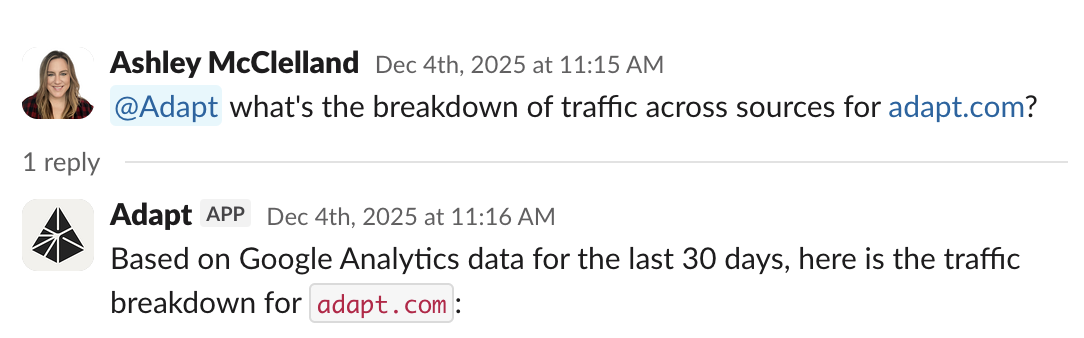
Adapt can query your Google Analytics data. Analyze traffic, user behavior, and
conversion metrics.
 ### Examples
Traffic analysis:
```
How many visitors did we have this week?
```
User behavior:
```
What are our most popular pages?
```
Conversion tracking:
```
What's our conversion rate?
```
Acquisition:
```
Where is our traffic coming from?
```
### Examples
Traffic analysis:
```
How many visitors did we have this week?
```
User behavior:
```
What are our most popular pages?
```
Conversion tracking:
```
What's our conversion rate?
```
Acquisition:
```
Where is our traffic coming from?
```