> ## Documentation Index
> Fetch the complete documentation index at: https://adapt.com/docs/llms.txt
> Use this file to discover all available pages before exploring further.
# Google Cloud Platform
> Connect Adapt to GCP for infrastructure monitoring, BigQuery analytics, and automated incident response
Google Cloud Platform (GCP) integration enables Adapt to monitor your cloud
infrastructure, query BigQuery datasets, and respond to production incidents
automatically.
## Setup
Create a dedicated service account for Adapt in your GCP project:
```bash theme={null}
gcloud iam service-accounts create adapt-sa \
--display-name="Adapt Service Account" \
--project=YOUR_PROJECT_ID
```
Grant the service account the roles it needs based on your use case:
| Example Use Case | Required Roles |
| ---------------- | ----------------------------------------------------- |
| BigQuery queries | `roles/bigquery.dataViewer`, `roles/bigquery.jobUser` |
| Cloud Logging | `roles/logging.viewer` |
| Cloud Monitoring | `roles/monitoring.viewer` |
| GKE inspection | `roles/container.viewer` |
Example for BigQuery access:
```bash theme={null}
gcloud projects add-iam-policy-binding YOUR_PROJECT_ID \
--member="serviceAccount:adapt-sa@YOUR_PROJECT_ID.iam.gserviceaccount.com" \
--role="roles/bigquery.dataViewer"
gcloud projects add-iam-policy-binding YOUR_PROJECT_ID \
--member="serviceAccount:adapt-sa@YOUR_PROJECT_ID.iam.gserviceaccount.com" \
--role="roles/bigquery.jobUser"
```
```bash theme={null}
gcloud iam service-accounts keys create adapt-sa-key.json \
--iam-account=adapt-sa@YOUR_PROJECT_ID.iam.gserviceaccount.com
```
1. Go to **Settings > Secrets**
2. Click **Add Secret**
3. Set the name to `GCP_SERVICE_ACCOUNT_JSON`
4. Paste the contents of your `adapt-sa-key.json` file
5. Click **Save**
### Secret Reference
| Secret Name | Description |
| -------------------------- | ------------------------------------------------------------------ |
| `GCP_SERVICE_ACCOUNT_JSON` | Service account key JSON for authentication |
| `GCP_PROJECT_ID` | (Optional) Default project ID if not specified in prompts to Adapt |
### Best Practices
1. **Least privilege**: Only grant the roles Adapt needs for your specific use cases
2. **Audit logging**: Enable Cloud Audit Logs to track Adapt's API calls
3. **Key rotation**: Rotate service account keys periodically
## Capabilities
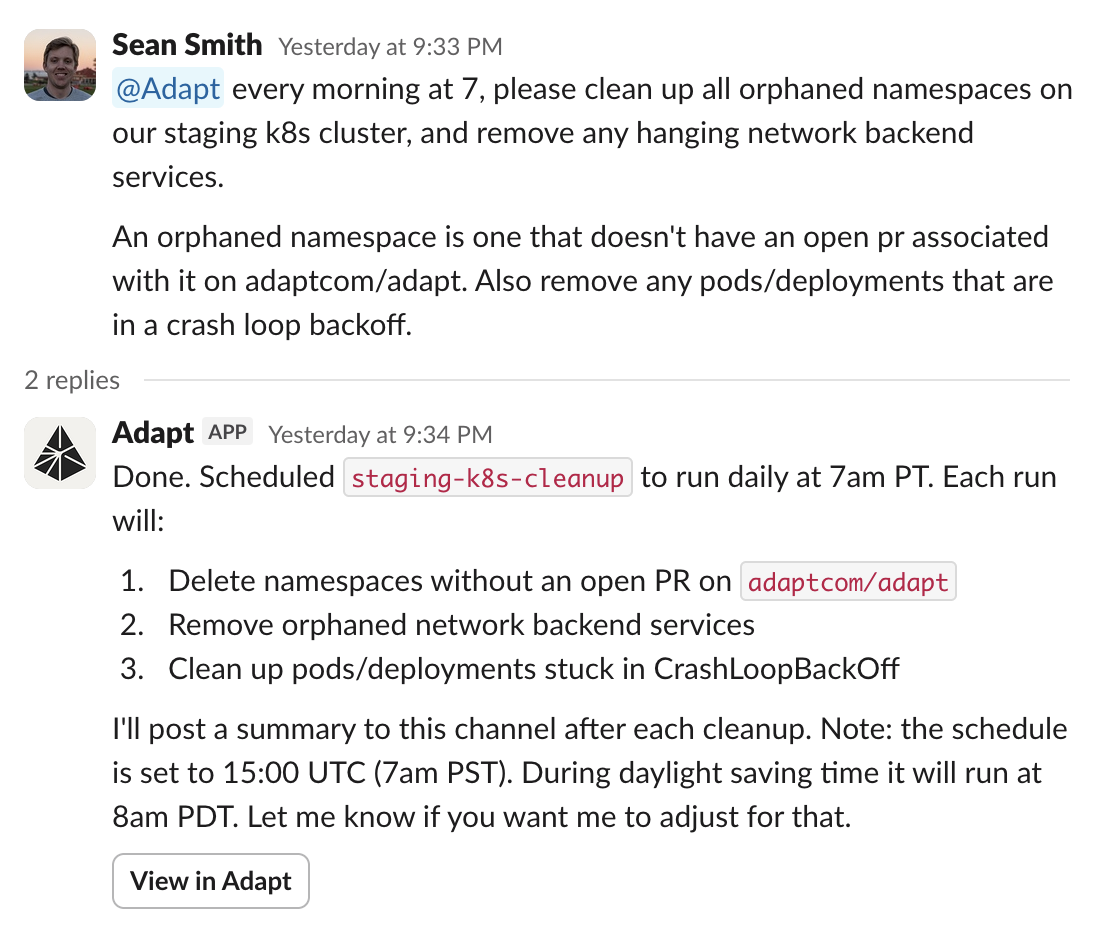
Adapt can access your GCP resources. Query BigQuery, monitor infrastructure,
and investigate incidents.
 ### Examples
BigQuery analytics:
```
Query our BigQuery dataset for total revenue last month
```
Infrastructure monitoring:
```
Check the GCP logs for errors in the last hour
```
Incident response:
```
Debug why the production pod is in CrashLoopBackOff
```
Service status:
```
What's the status of our Cloud Run services?
```
### Examples
BigQuery analytics:
```
Query our BigQuery dataset for total revenue last month
```
Infrastructure monitoring:
```
Check the GCP logs for errors in the last hour
```
Incident response:
```
Debug why the production pod is in CrashLoopBackOff
```
Service status:
```
What's the status of our Cloud Run services?
```