> ## Documentation Index
> Fetch the complete documentation index at: https://adapt.com/docs/llms.txt
> Use this file to discover all available pages before exploring further.
# Doppler
> Connect Doppler to Adapt with a service account token to read secrets from your projects and configs
Connect Doppler to Adapt with a service account API token so Adapt can read the
secrets in the projects and configs you grant it access to.
Service accounts are available on Doppler's Team and Enterprise plans. On other
plans, use a service token instead — it is read-only and scoped to a single
project and config.
## Set up credentials
Sign in to [Doppler](https://dashboard.doppler.com/), then go to
**Team > Service Accounts**.
Click the **+** button, name it `Adapt` (or any name you prefer), and click
**Create Service Account**. Doppler takes you to the configuration page for
the new account.
Click **Add Project Access**, then select each project Adapt should read.
For each one, set the **Role** to **Viewer** and choose the **Environments**
(configs) Adapt needs, such as `dev` and `stg`. Click **Save**.
Grant access only to the projects and configs Adapt actually needs. Anything
you leave out stays invisible to the token.
In the **Service Account API Tokens** section, click the **+** button, name
the token `Adapt`, and leave **Expire Token** unchecked so the connection
does not break later. Click **Create API Token**.
Copy the generated token immediately. It starts with `dp.sa.` and is shown
only once.
## Connect to Adapt
In Adapt, go to
[**Settings > Integrations**](https://app.adapt.com/settings/integrations).
Search for **Doppler** and select it from the catalog, or go straight to
[app.adapt.com/settings/integrations/doppler](https://app.adapt.com/settings/integrations/doppler).
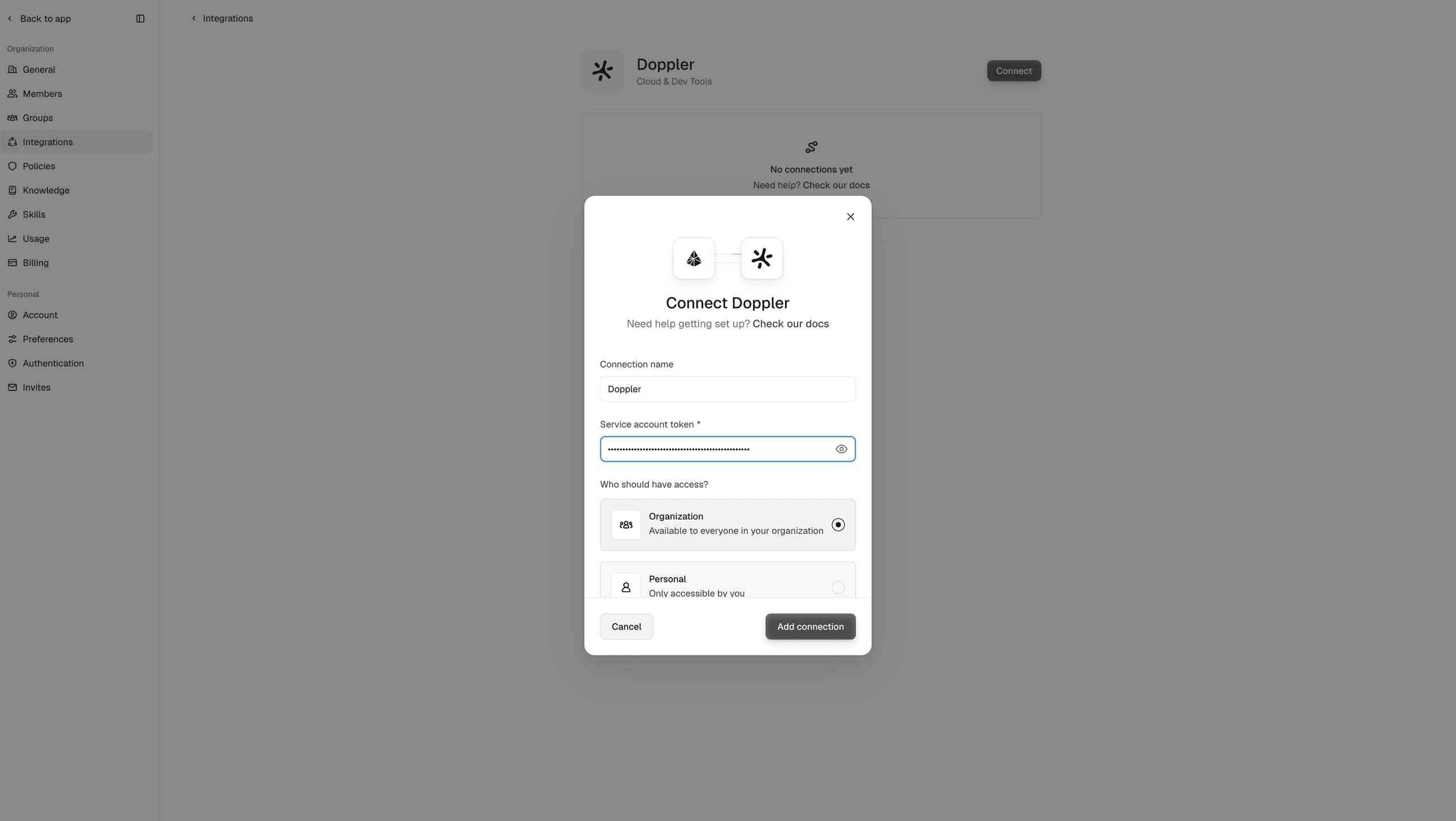
Click **Connect** to open the connection form.
Paste the token into the **Service account token** field, then click
**Add connection**:
| Secret Name | Value |
| ------------------------------- | -------------------------------------- |
| `DOPPLER_SERVICE_ACCOUNT_TOKEN` | Your Doppler service account API token |
You can rename the connection and choose whether it is shared with your
organization or kept personal to you.
 Ask Adapt to list your Doppler projects.
## Capabilities
Adapt can list the projects and configs the service account can see and read
the secrets inside them, so it can work with services that need those
credentials.
### Examples
```
List my Doppler projects and their configs.
```
```
Which secrets are set in the staging config of the adapt project?
```
```
Compare the secret names in dev and staging and tell me what is missing.
```
```
Use the GitHub token in Doppler to install our private npm packages.
```
Ask Adapt to list your Doppler projects.
## Capabilities
Adapt can list the projects and configs the service account can see and read
the secrets inside them, so it can work with services that need those
credentials.
### Examples
```
List my Doppler projects and their configs.
```
```
Which secrets are set in the staging config of the adapt project?
```
```
Compare the secret names in dev and staging and tell me what is missing.
```
```
Use the GitHub token in Doppler to install our private npm packages.
```